
Help Center > Real Estate Reviews > How to Upload Your Real Estate Review MLS Export File
How to Upload Your Real Estate Review MLS Export File
The software runs by using an MLS search export you upload to the program. You will first need to setup your export file in the MLS so it downloads the right information. Learn more about this step here. Once you’ve done your search you’re ready to upload your search export into the report. To do this, first you’ll need to be on the Upload Export File step.
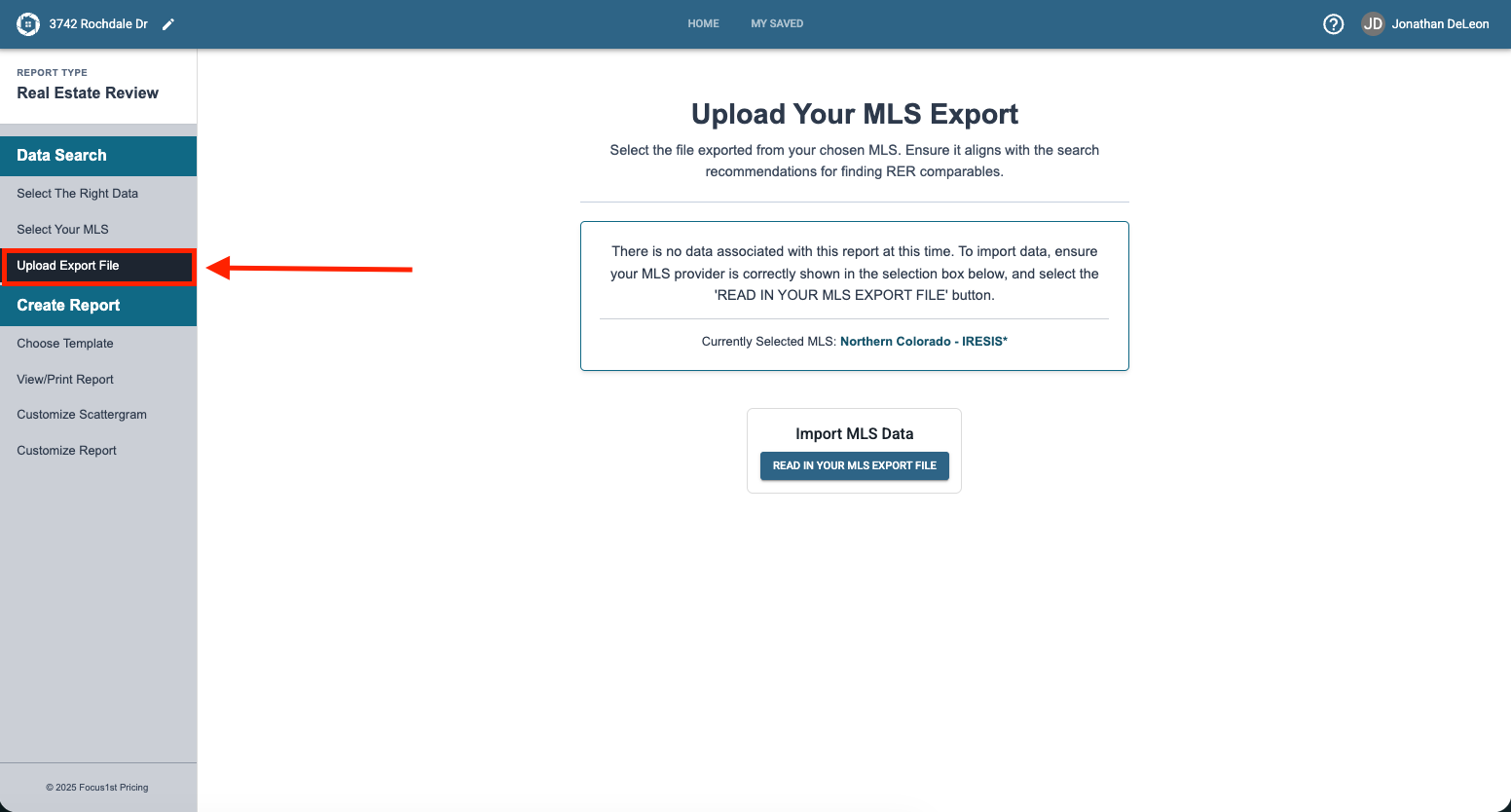
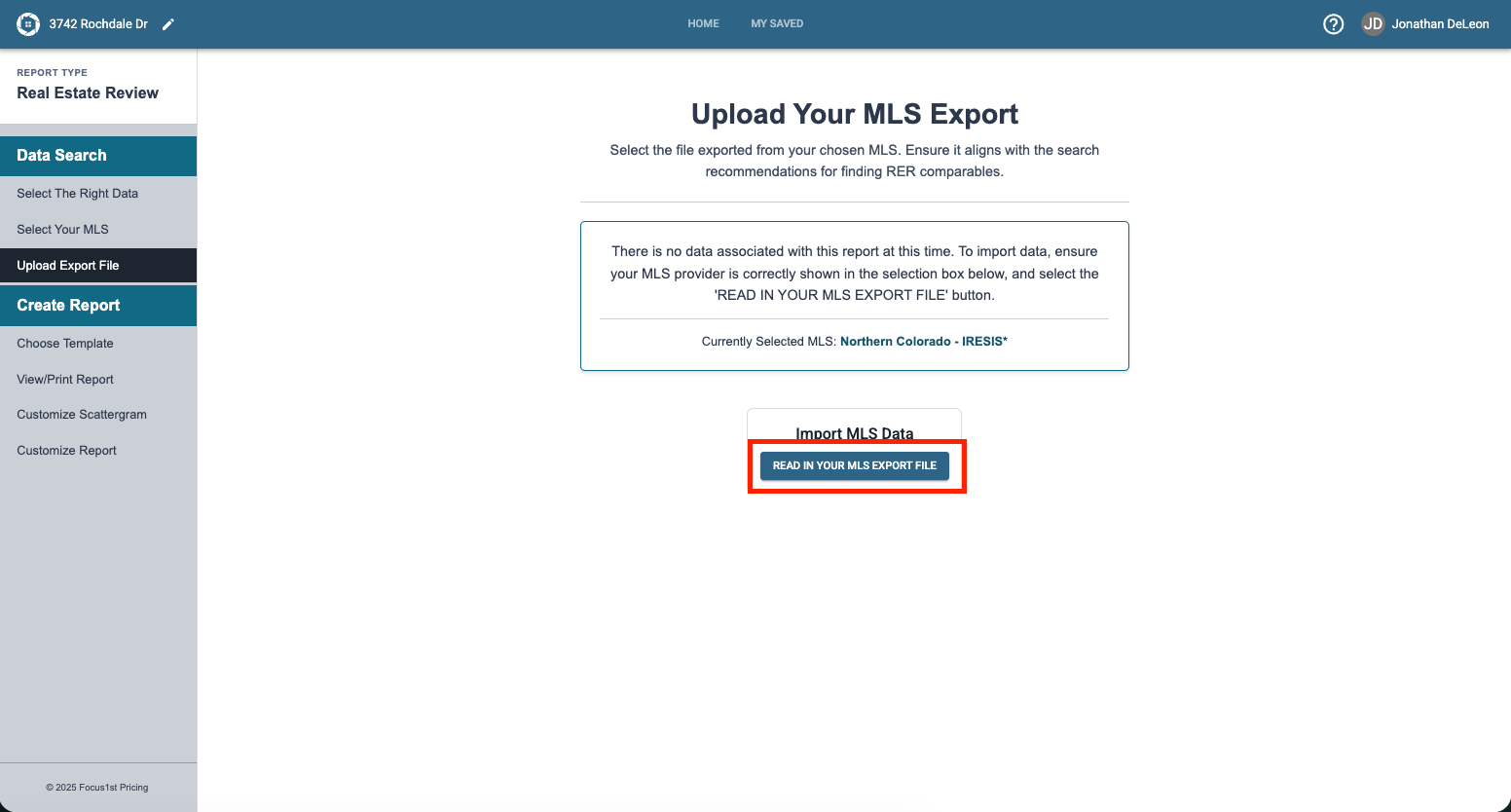
Then click the Read In Your MLS File button to upload your MLS file. (This button will look slightly different if you’re uploading multiple MLS files. To see the instruction for that case refer to the System Settings instruction pages.)
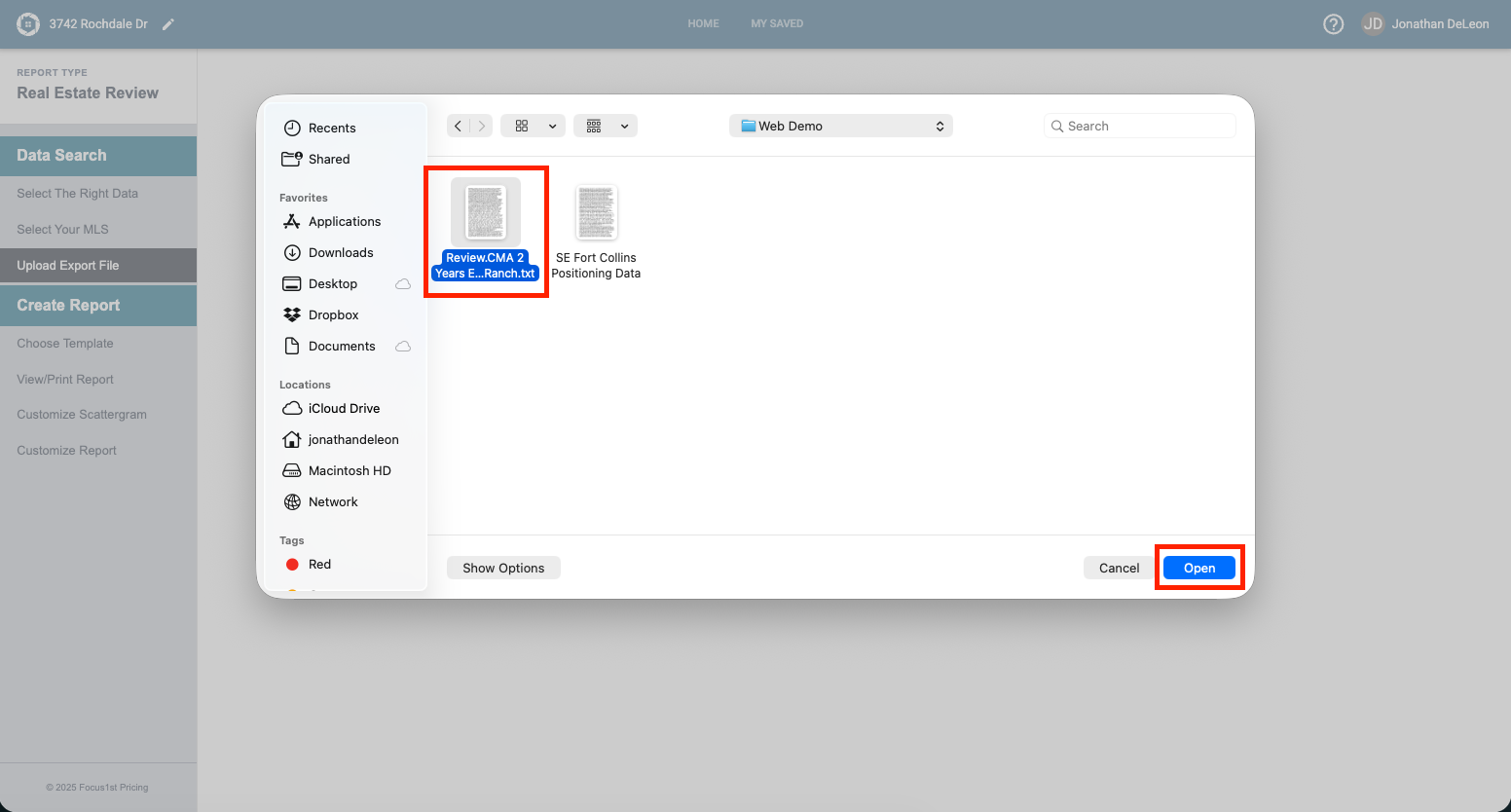
Find your file using the window that opens and click Open.
The data will upload. If successful you’ll see a message here.
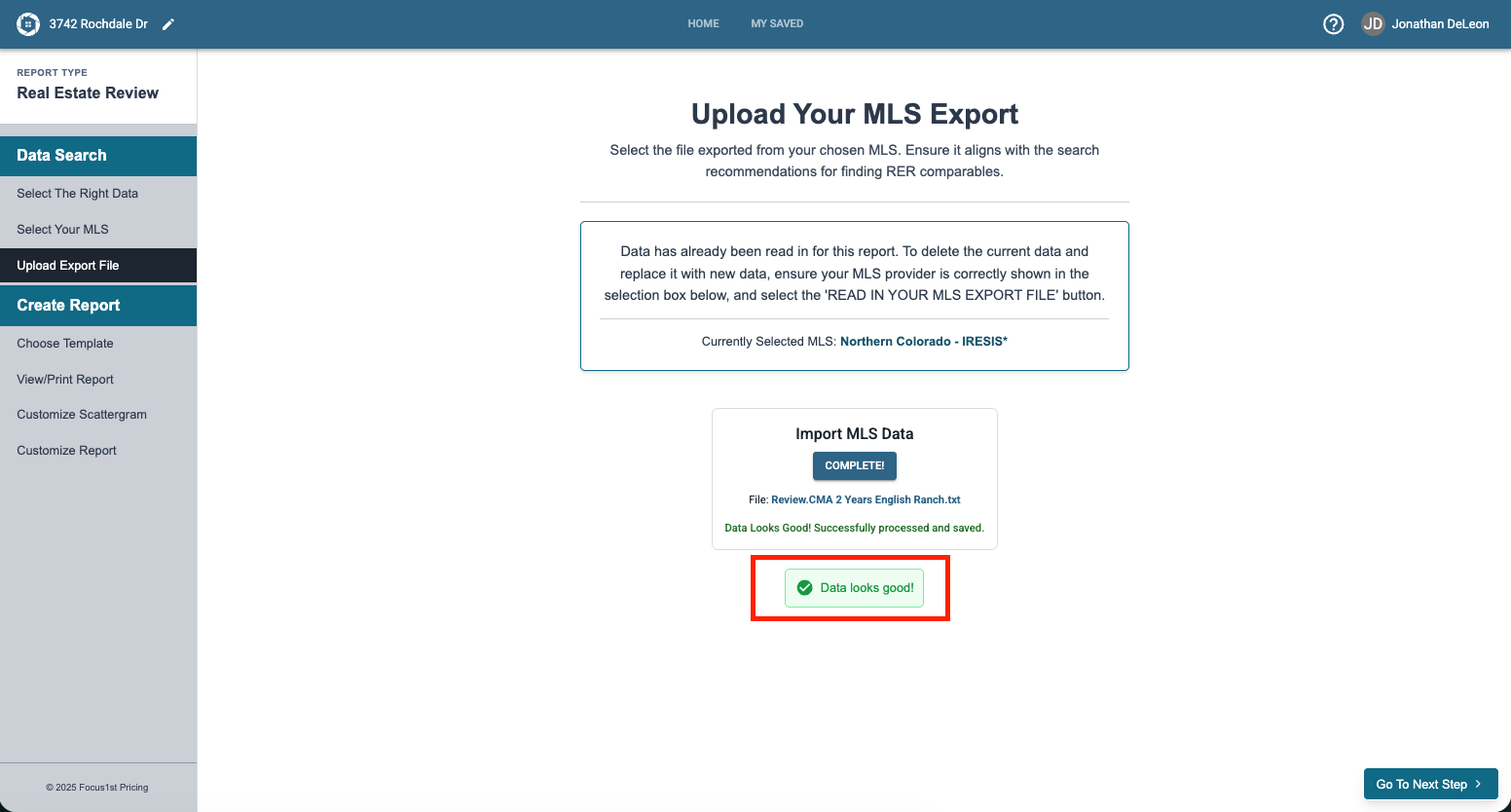
If you see a warning, it doesn’t mean that the data didn’t work, but that we noticed something in your search upload that could cause errors or issues. This is not always the case, but that warning can help you fix your search to make it more complete. To learn more about those warnings see this instructional page.
Open Report
Sidebar Step
Click Button
Find File
Potential Warnings
Upload New
Upload Additional