
Help Center > Real Estate Reviews > How to Customize the 2 Page Real Estate Review Report
How to Customize the 2 Page Real Estate Review Report
The 2-Page Real Estate Review Report is the standard report that most agents use. It shows the area patterns and the value and allows for some customization while keeping things simple.
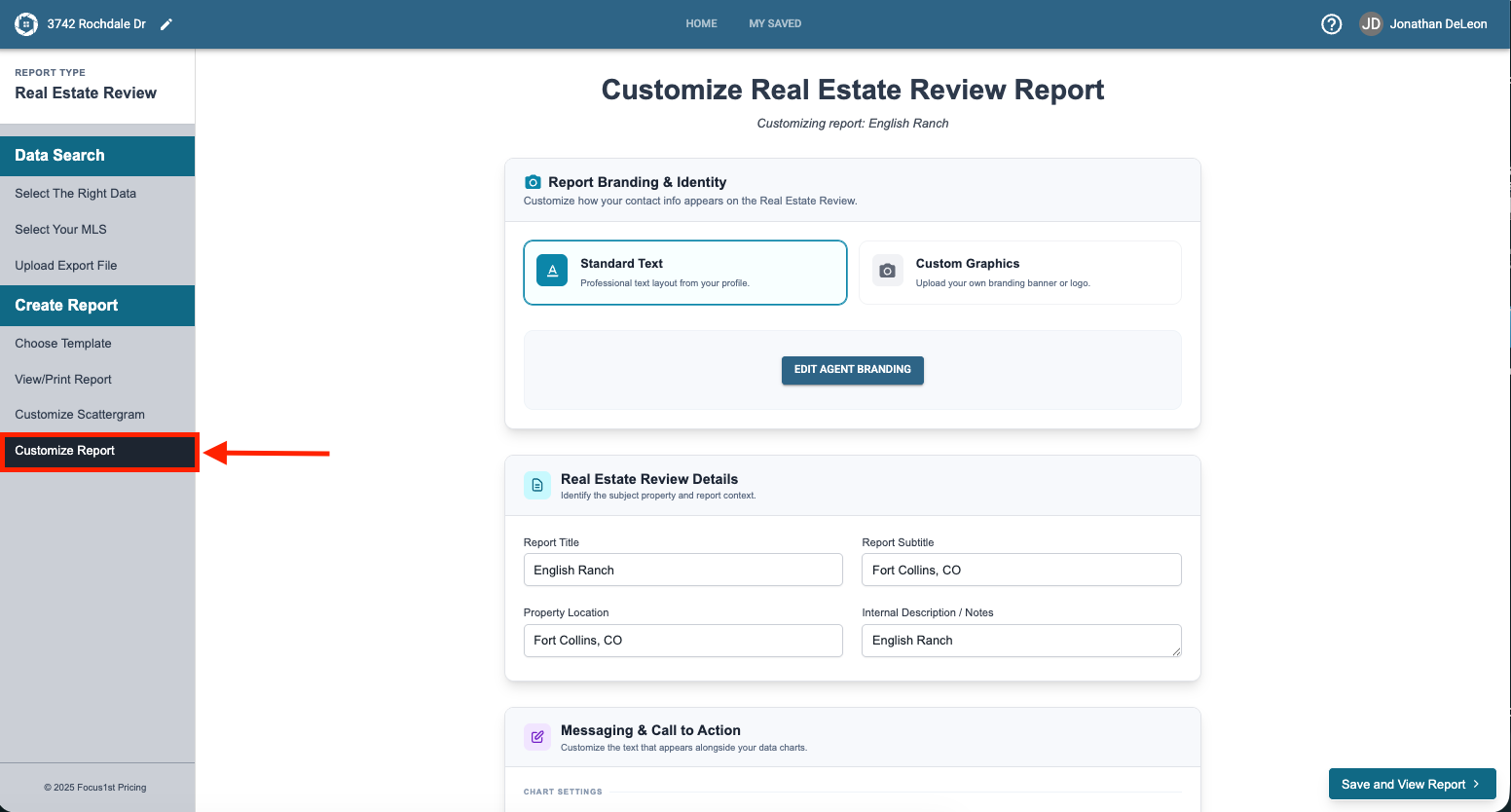
To begin customizing your 2-Page report, you’ll need to click on the Customize Report step on the sidebar.
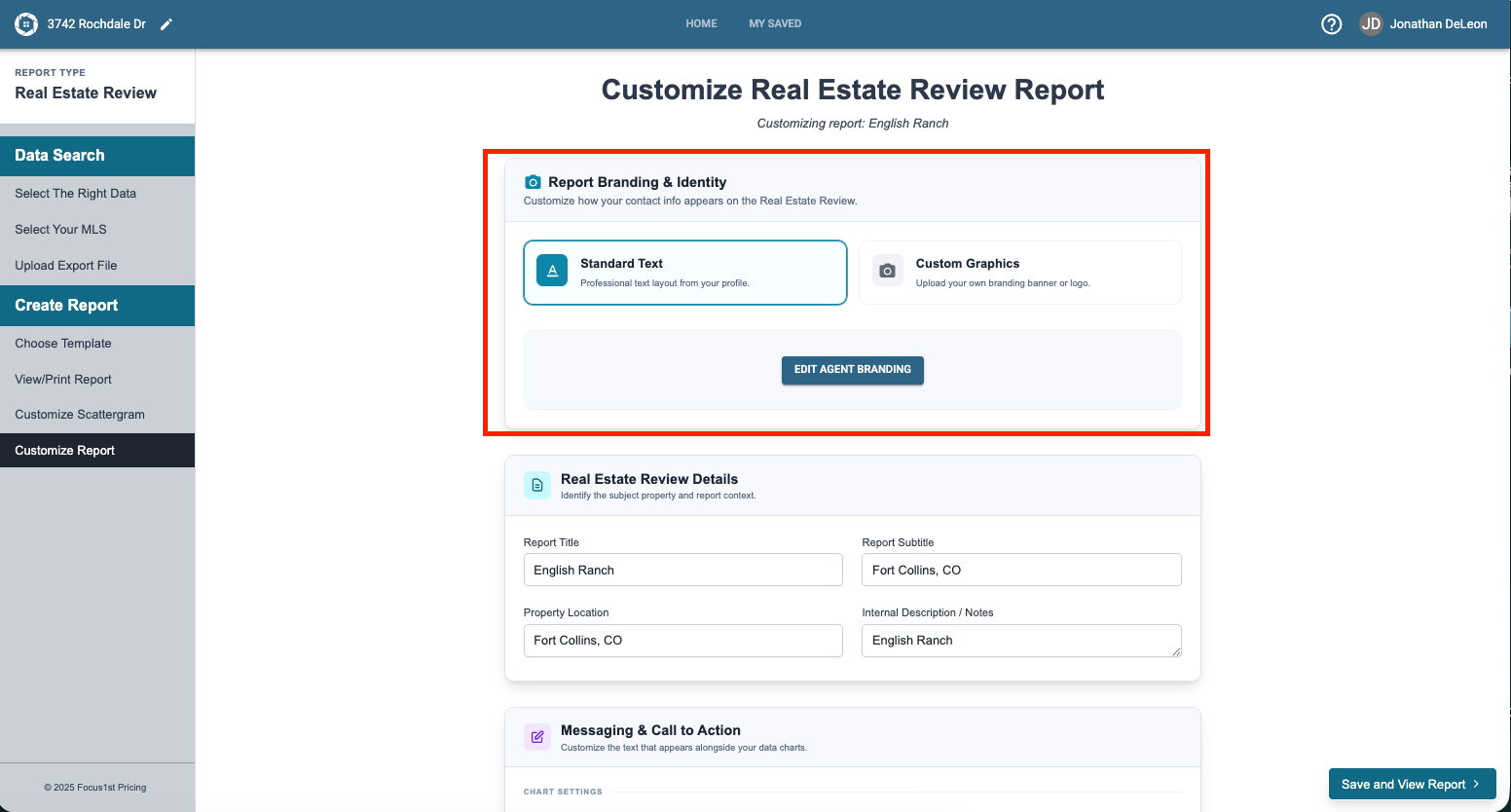
The first section you can customize are the footers. If you have the Standard Text option selected, changing the appearance and Agent Branding info is done by clicking the Edit Agent Information button, making changes and saving. More instruction on Agent Branding here.
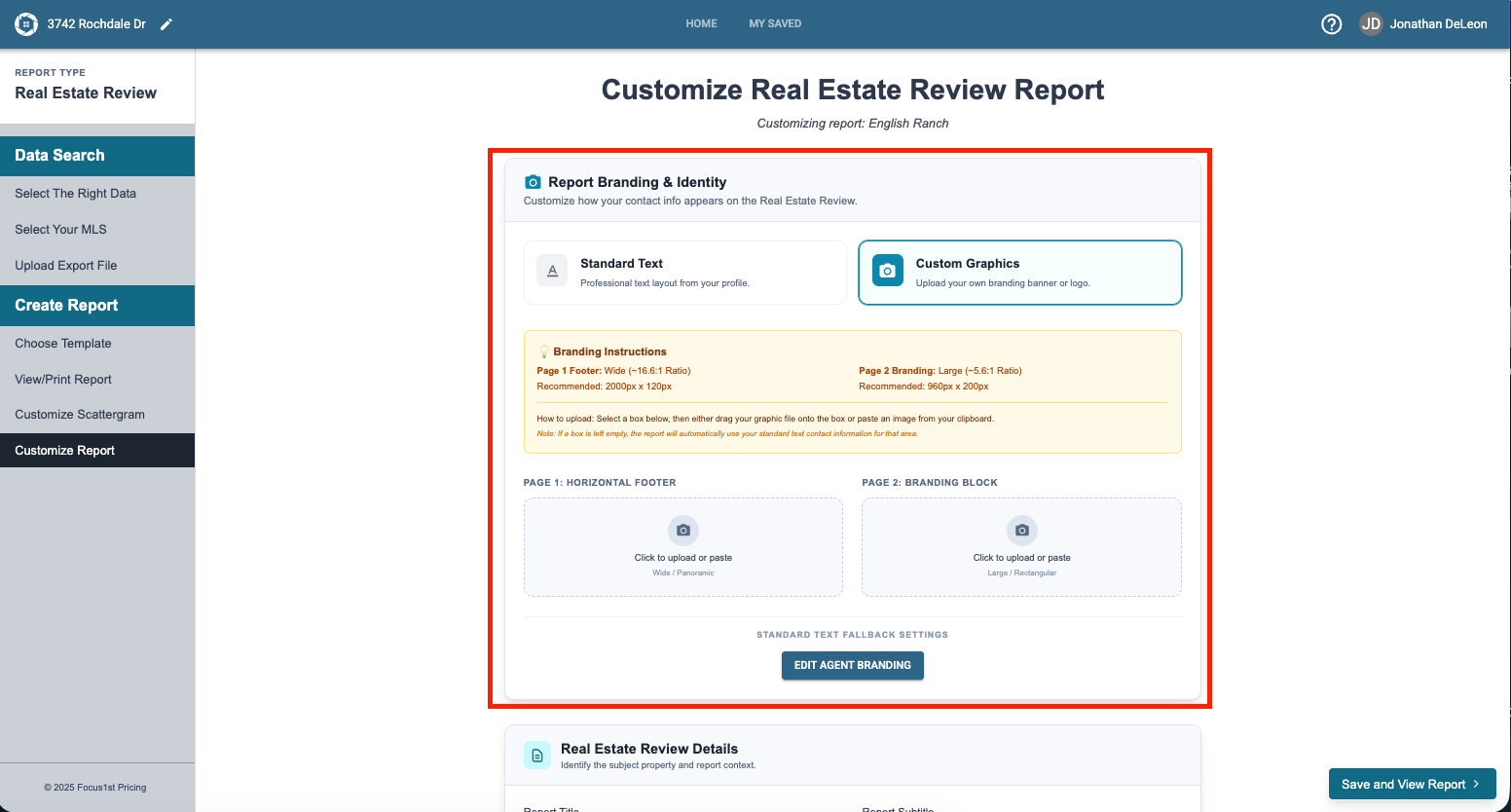
The other option you have is to upload custom images as the footers for both the first page and second page, or for either one independently. This allows you to really have a lot of control over the report appearance. To open his option you’ll first click on the Custom Graphics button.
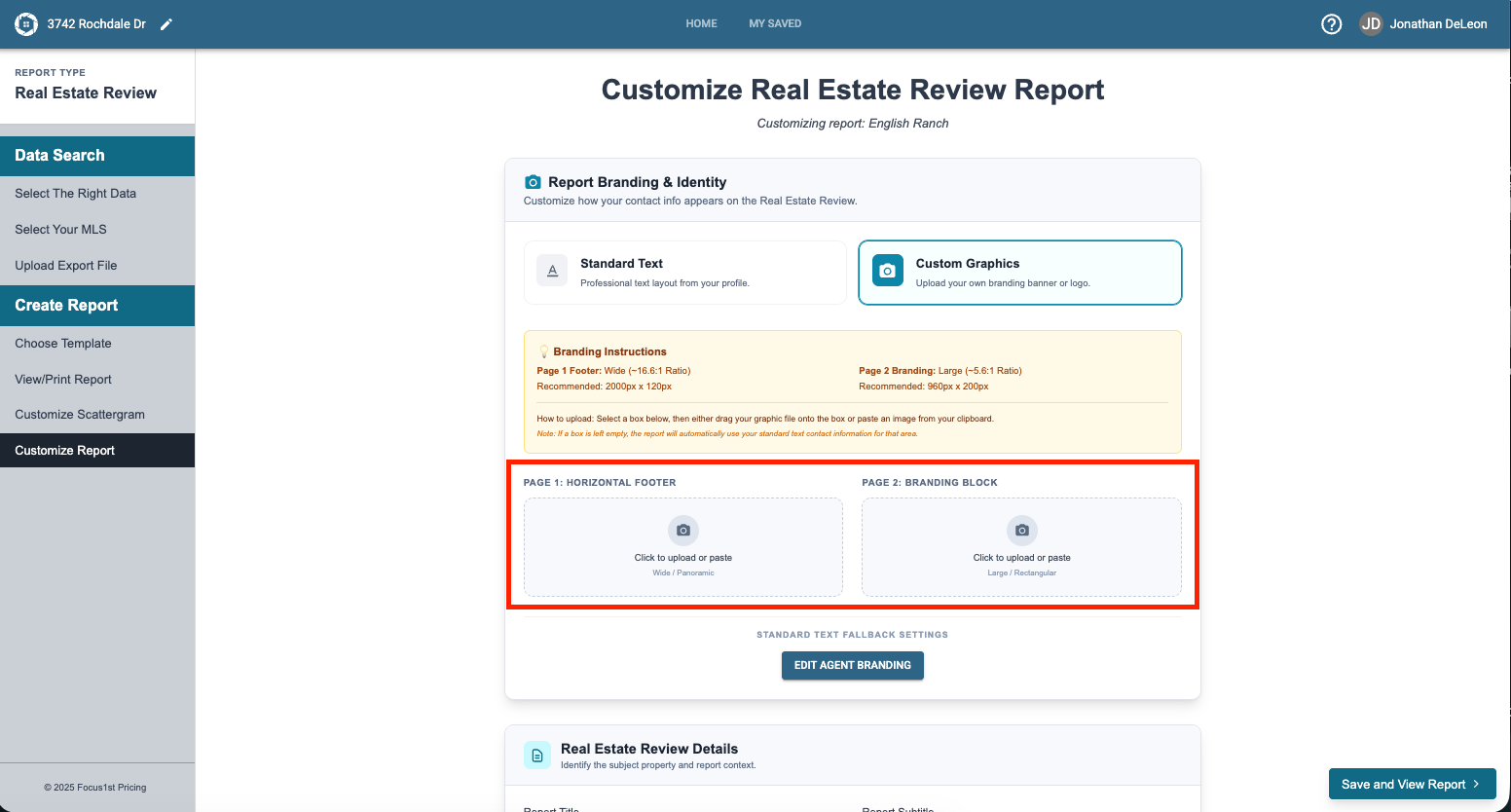
You’ll then click on the option to upload your corresponding images. More on custom graphics here.
In the second section you can type in the textboxes if you wish to change the Report Title, property location or search area note.
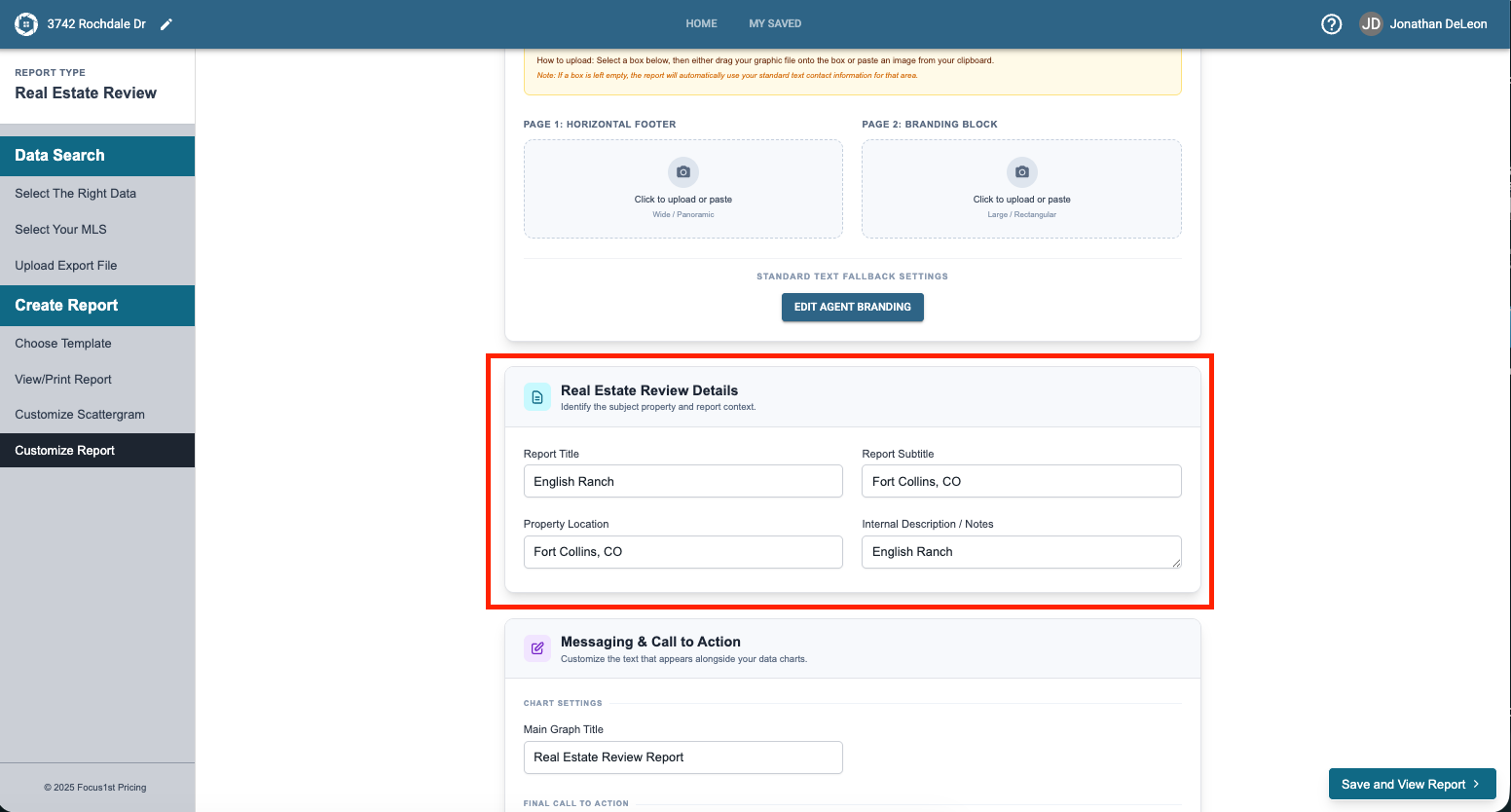
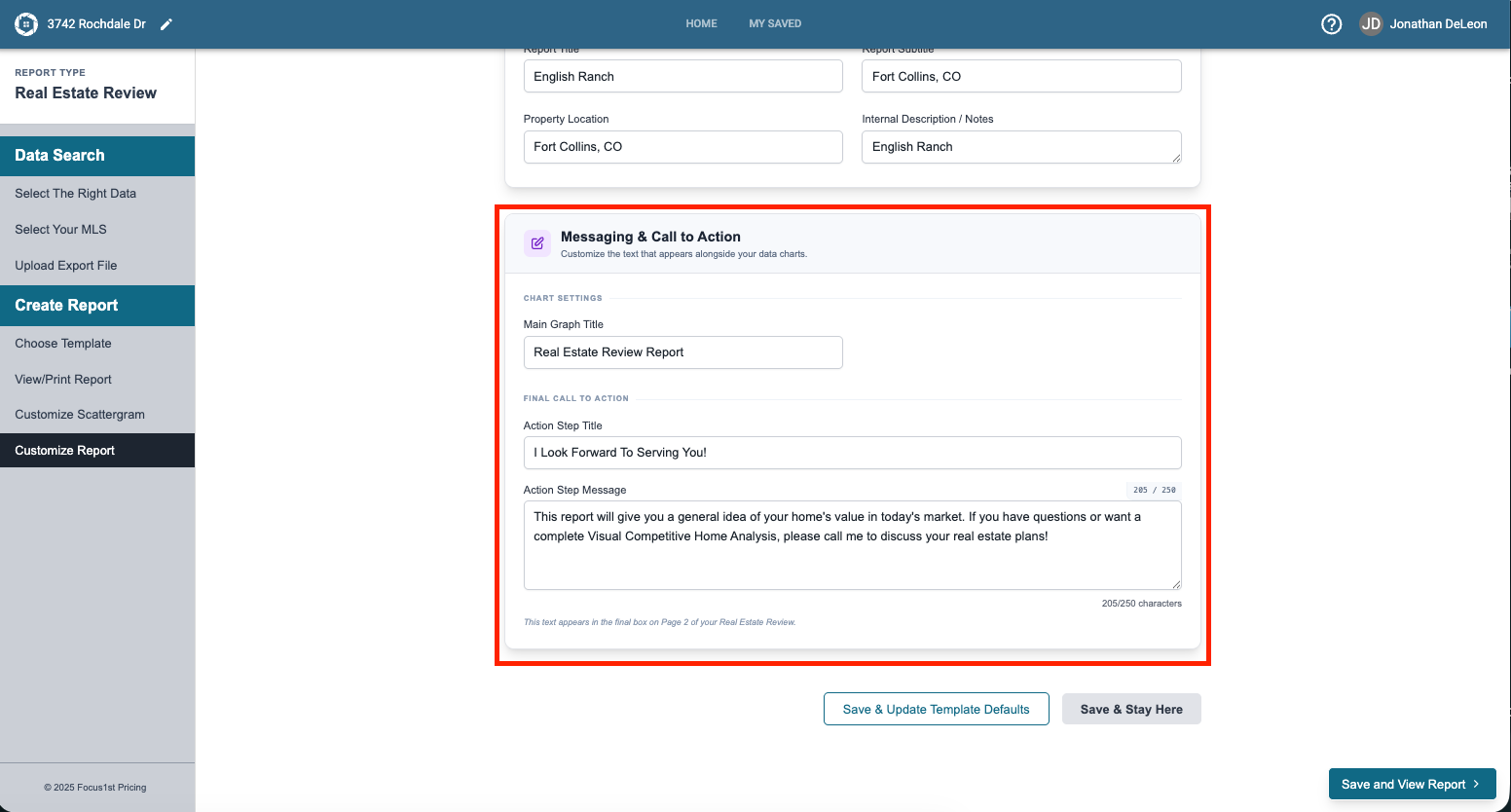
In the third section you can change the Graph title or Graph subtitle by typing in the text boxes. The final textbox in this section is where you can add personal messaging or a small note to your clients.
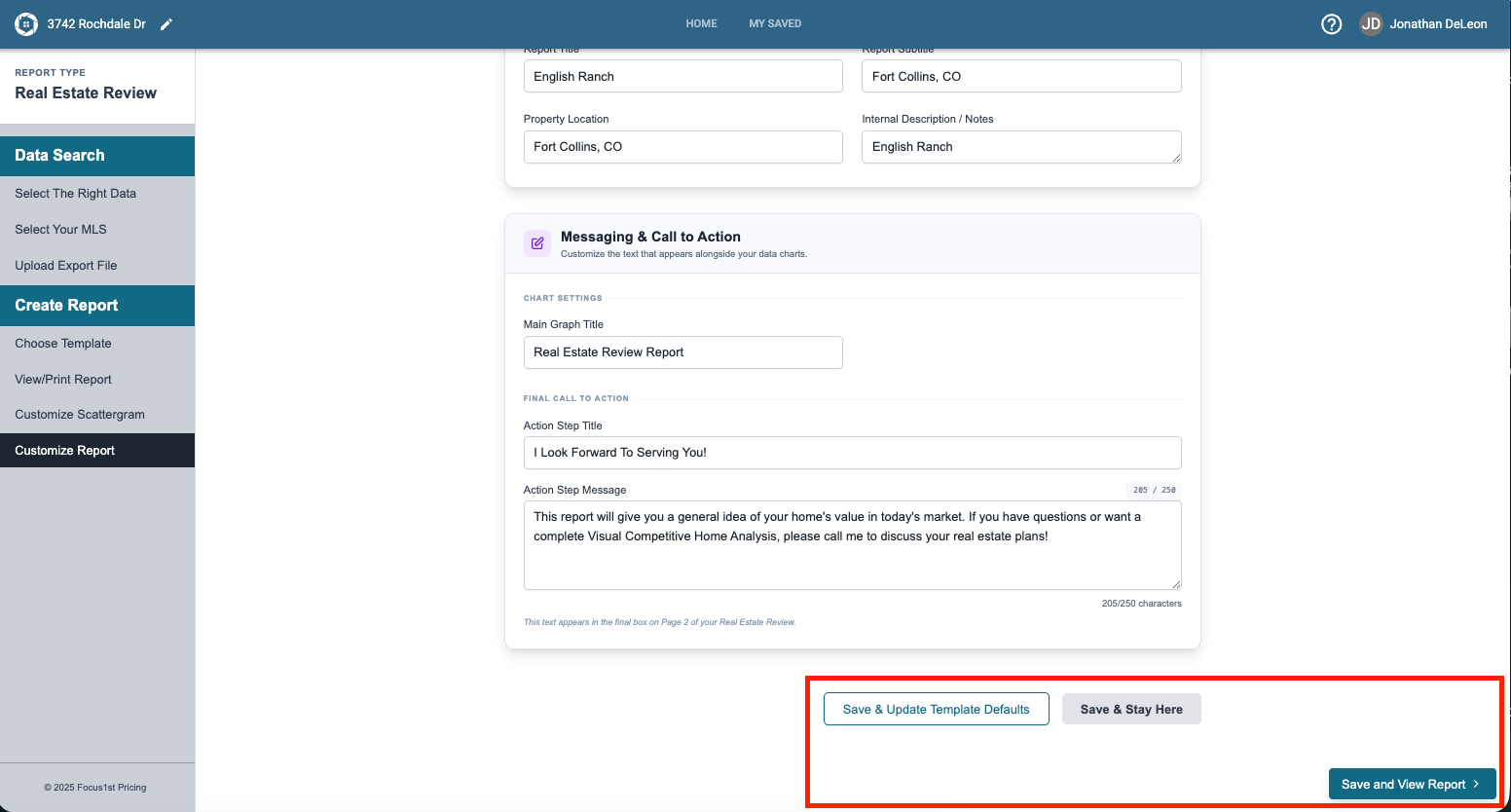
To save any changes you make, click one of the three save options.
Save & Update Template Defaults: Saves the changes and keeps your messaging and Agent Branding saved so any new report you create automatically has that information correct.
Save & Stay Here: Saves your changes but doesn’t leave the page so you can keep working.
Save & View Report: Saves your changes and opens the report.
Customize Report
First Page Footer
Second Page Footer
Real Estate Review Details
Messaging & Call to Action
Saving Options