
Help Center > Real Estate Reviews > How to Customize the Multi-Page Full Market Review
How to Customize the Multi-Page Full Market Review
The Multi-Page Full Market Review has more pages than the standard reviews and thus has more customization options. It doesn’t have the messaging and call to action areas, rather additional pages that each are customized separately, and in the end chosen whether to include or not.
The first additional page you can customize is the new Cover Page. Open the Edit Cover Page step in the sidebar.
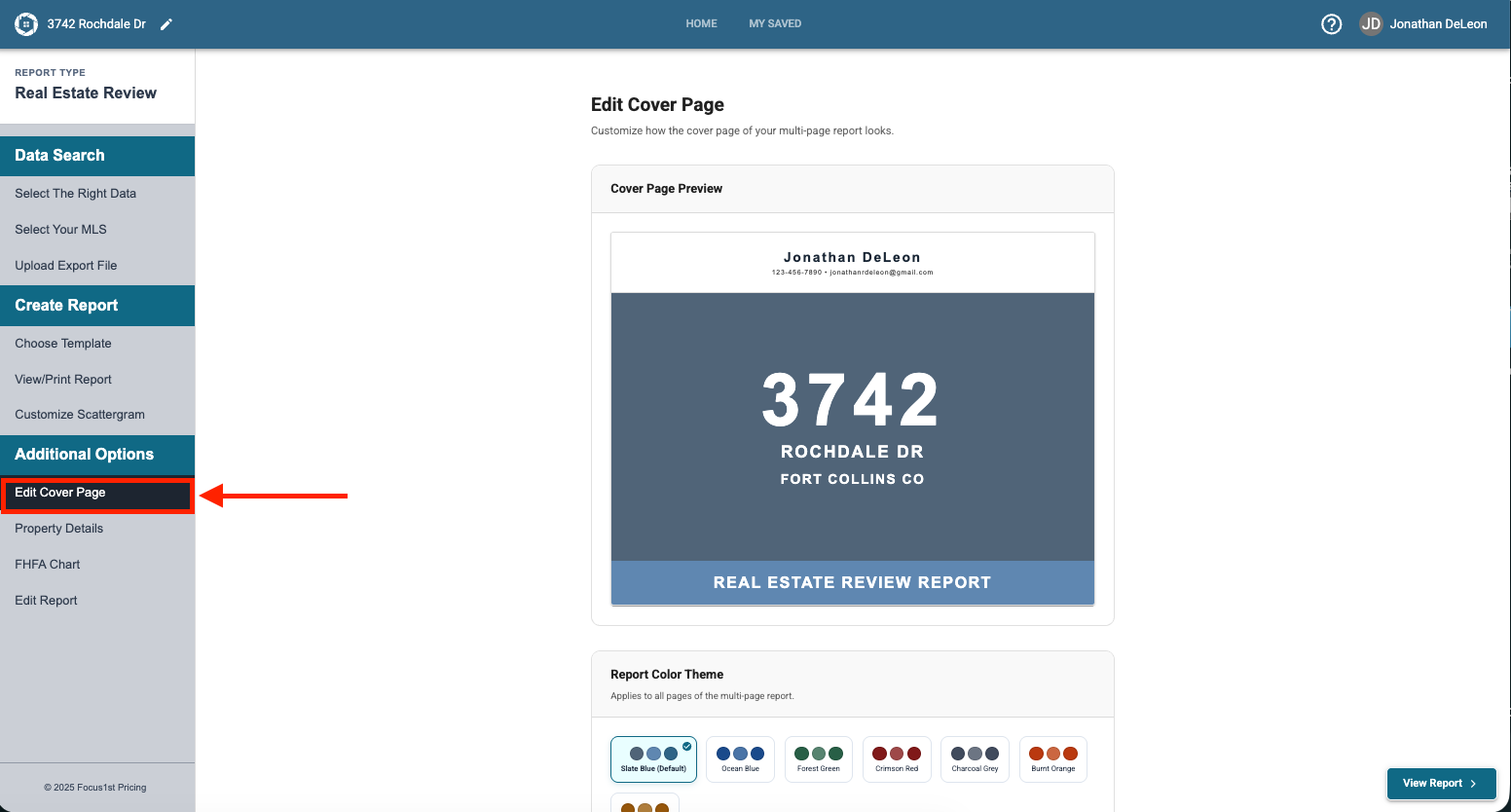
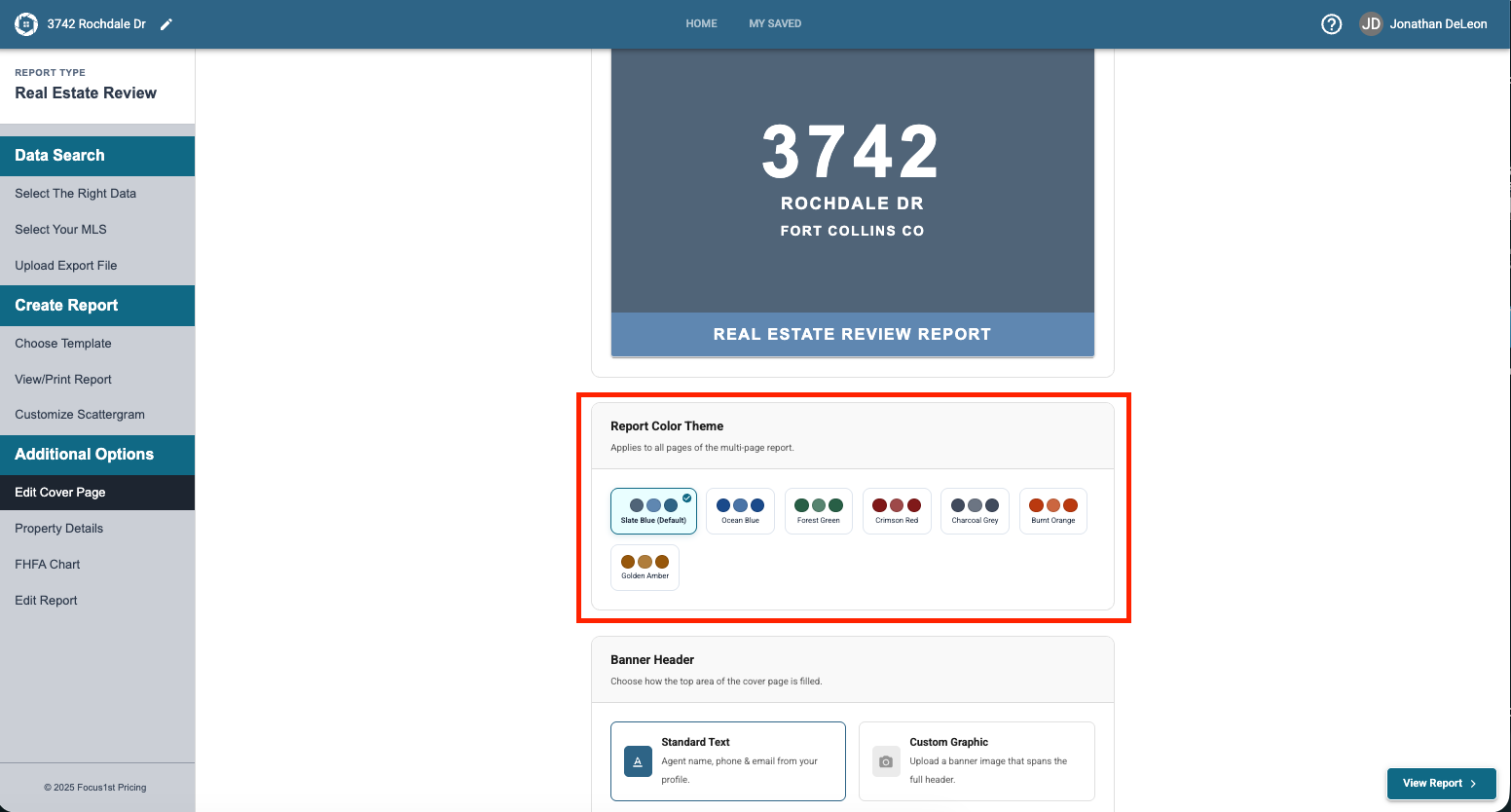
The first customization you can change is the color of the report by selecting one of the color options.
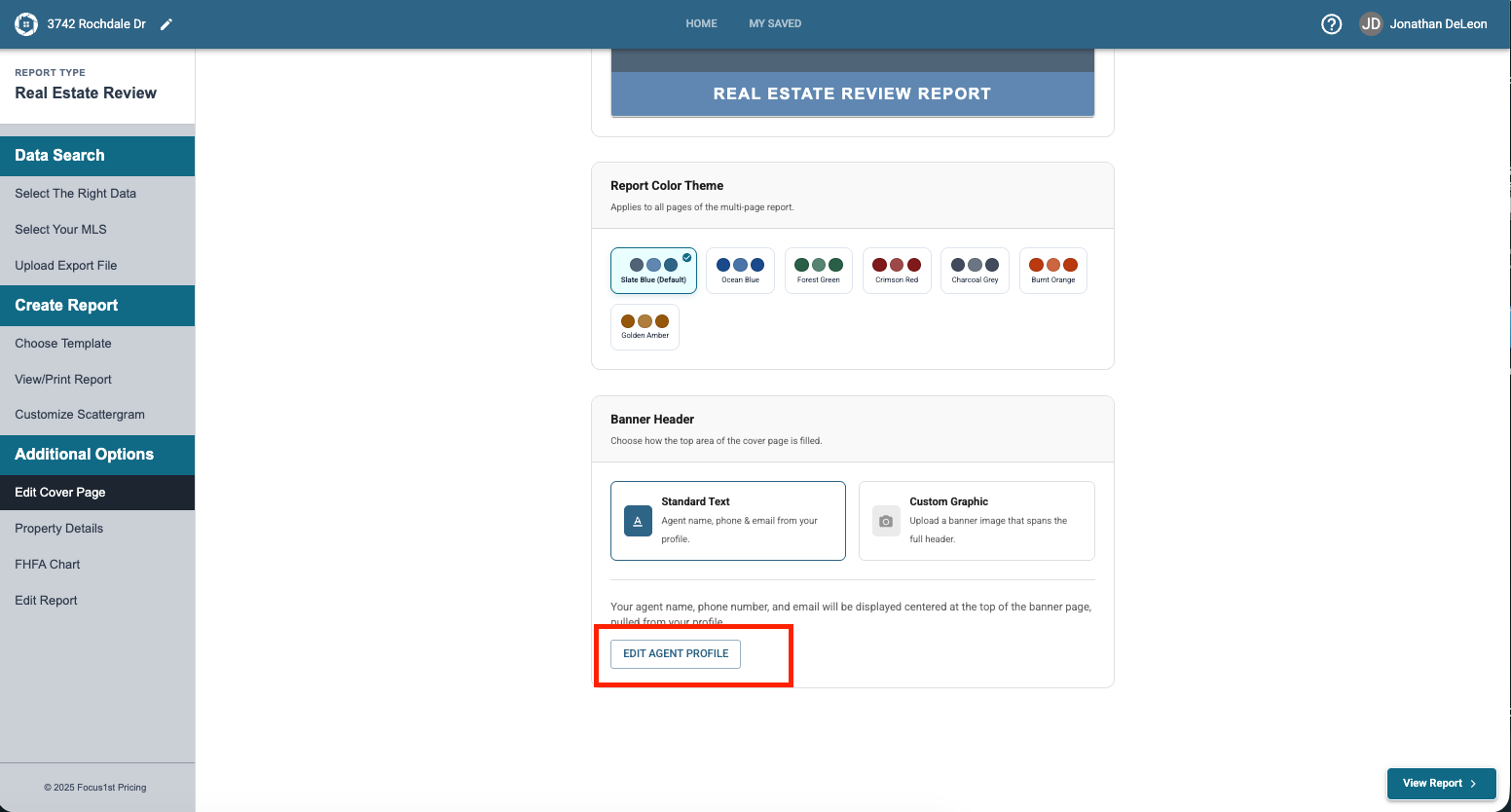
The second thing you can customize on the cover page is the banner at the top of that cover. The Standard Text banner is the default selection and can be changed by augmenting your Agent Branding information, by clicking the Edit Agent Profile button.
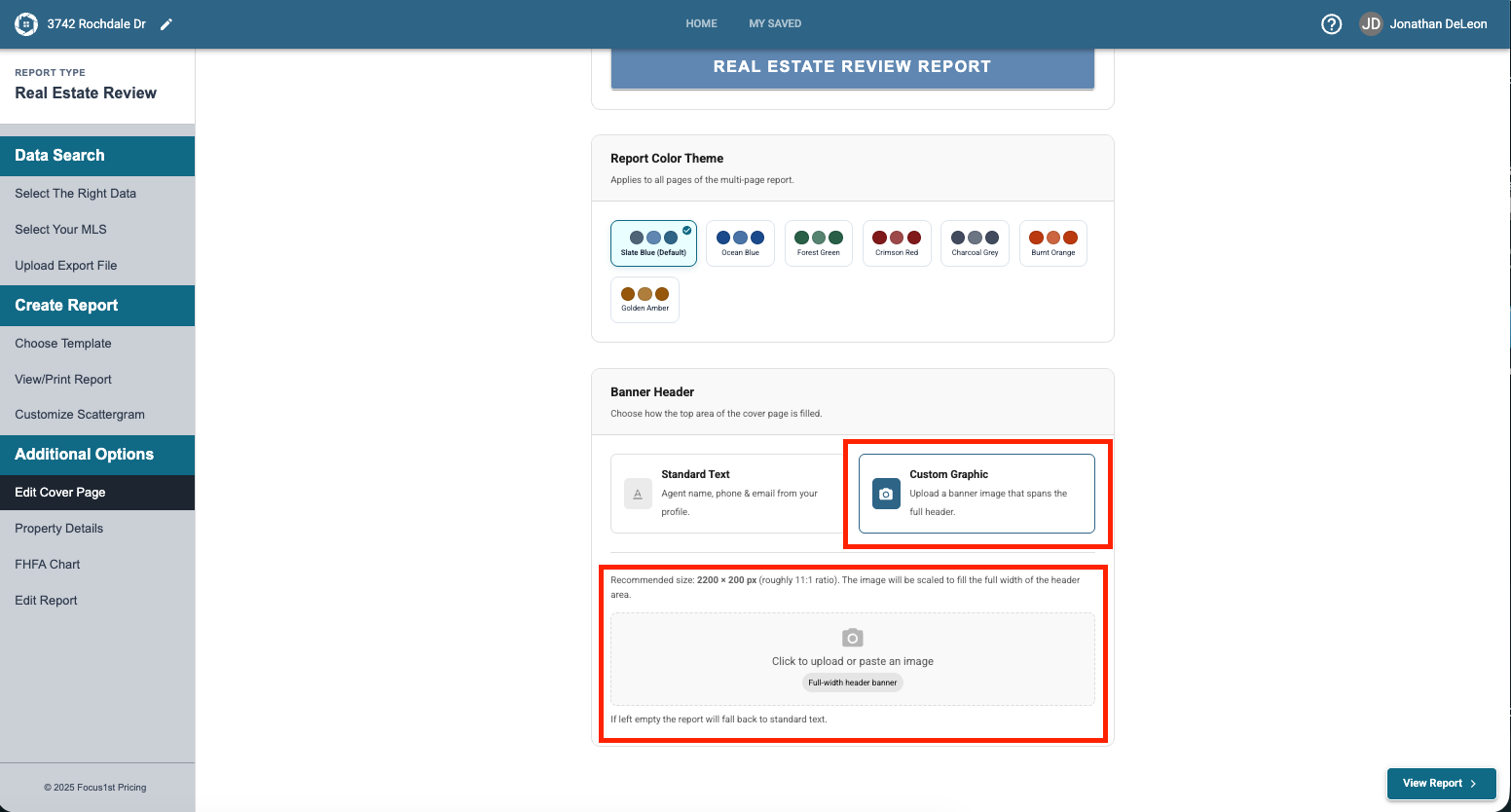
You also can replace that text banner with a custom graphic. To do this you’ll need to select the Custom Graphic option then upload a full width prepared image to the software. To learn more about custom graphics see this instruction.
The Property Details Page lets you create your own detailed page to show the home’s details in a way that connects with clients better than MLS sheets or property records. To use this page open the step Property Details.
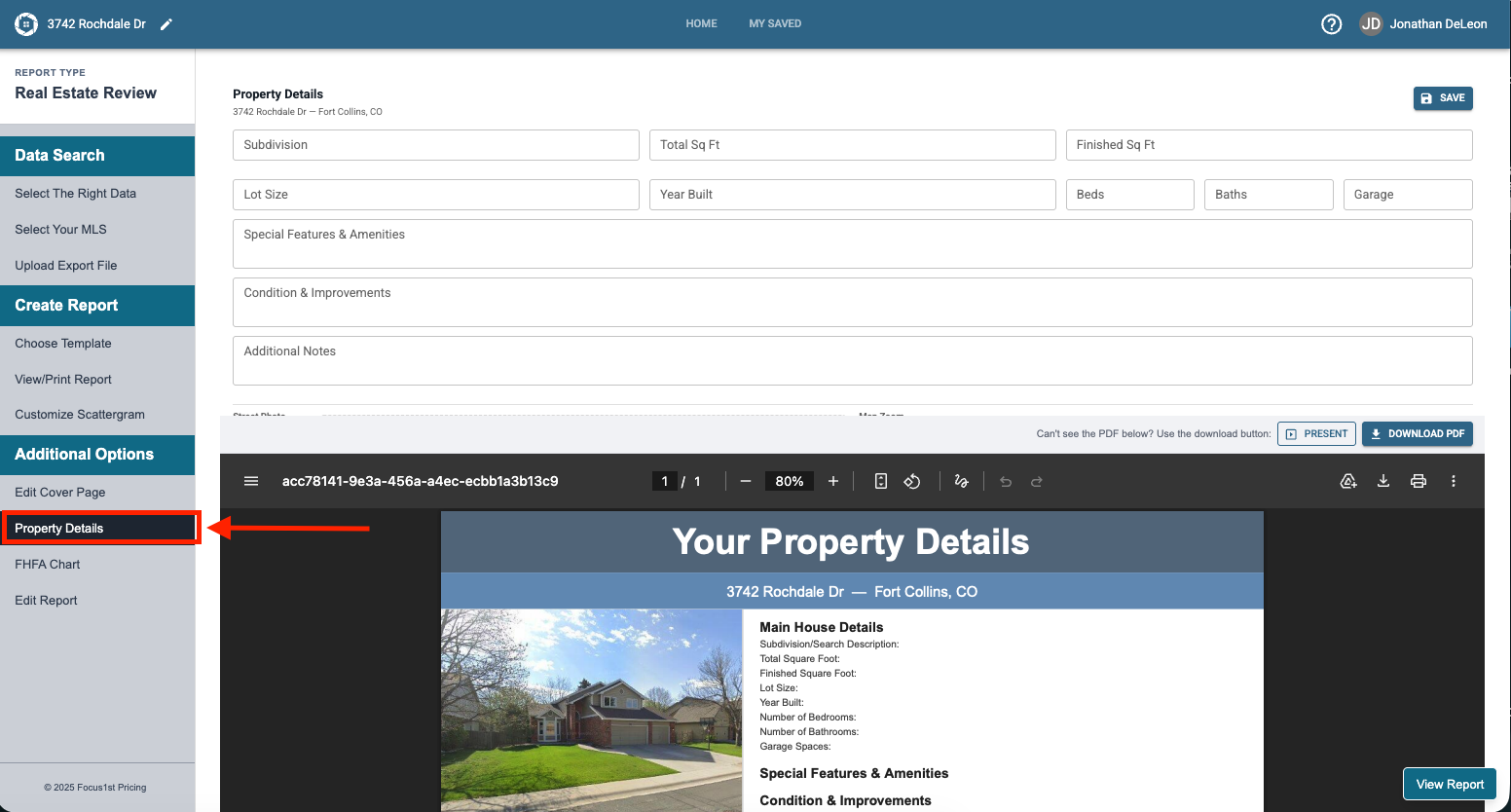
Then you can type into the textboxes up top the relevant information and click Save Changes.
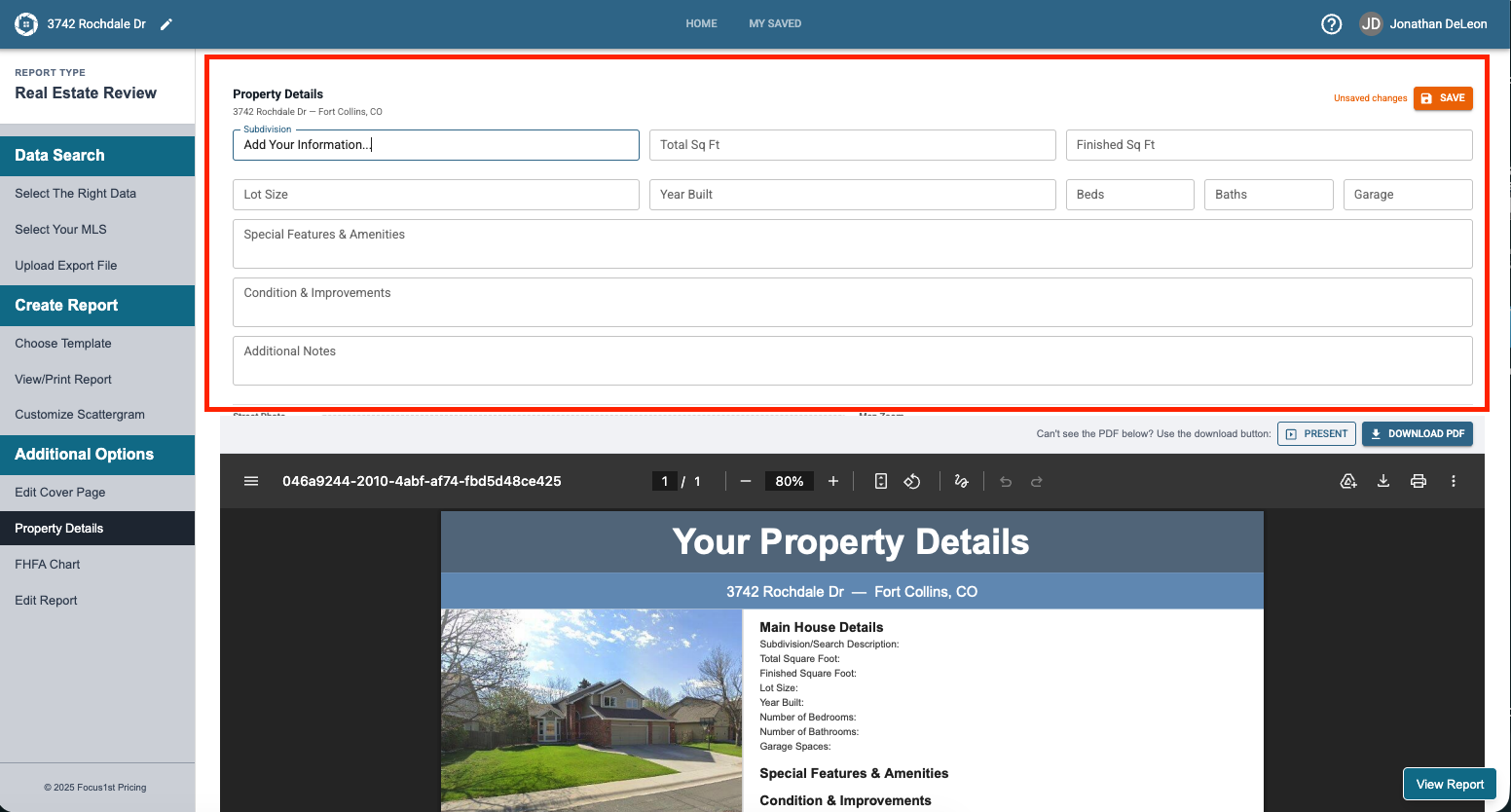
If the image that Street View pulled is not correct, you can replace it by scrolling down until you see the upload control to put your own image in that spot.
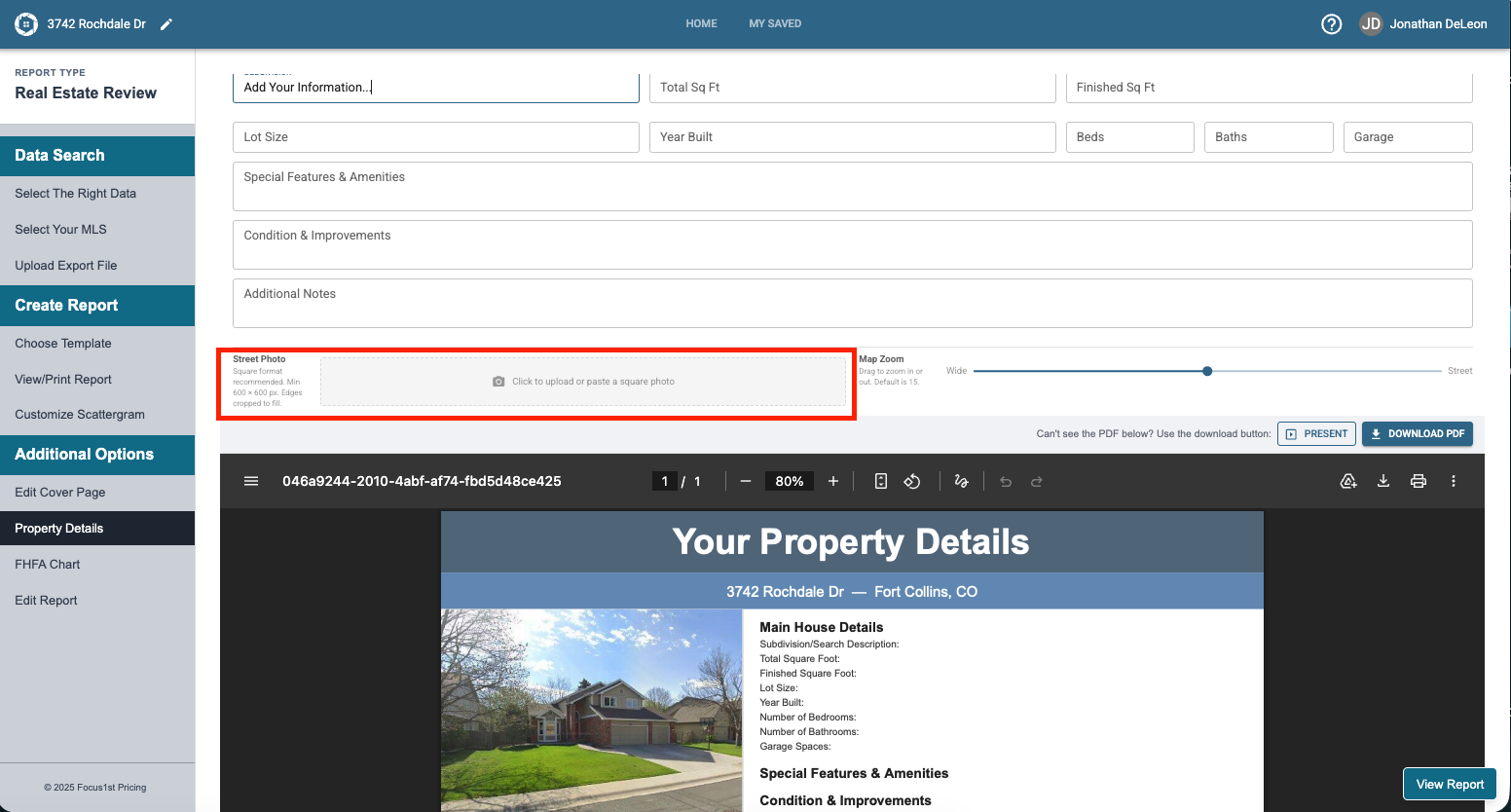
You can also customize the Map by zooming in or out using the slider bar control.
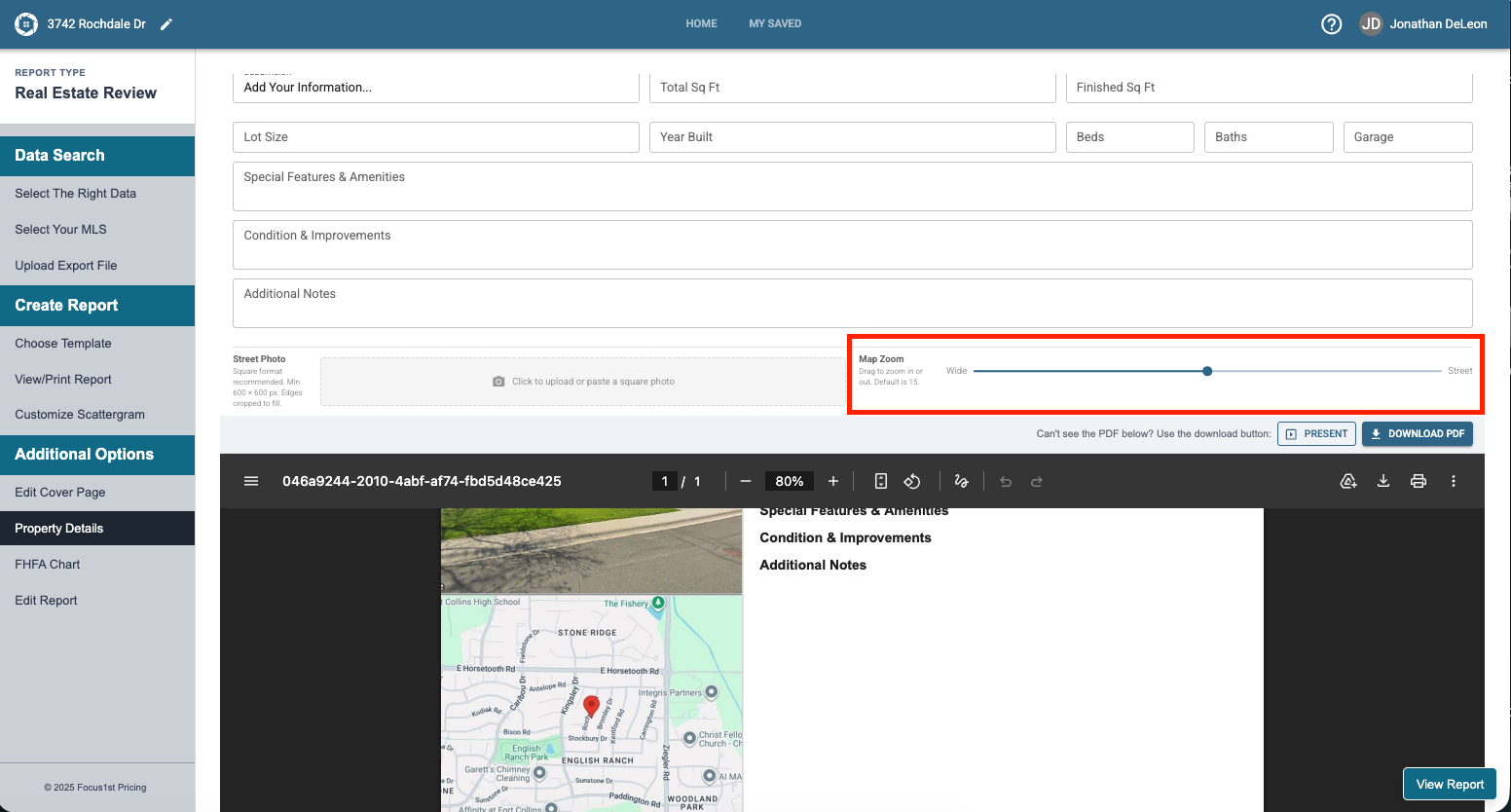
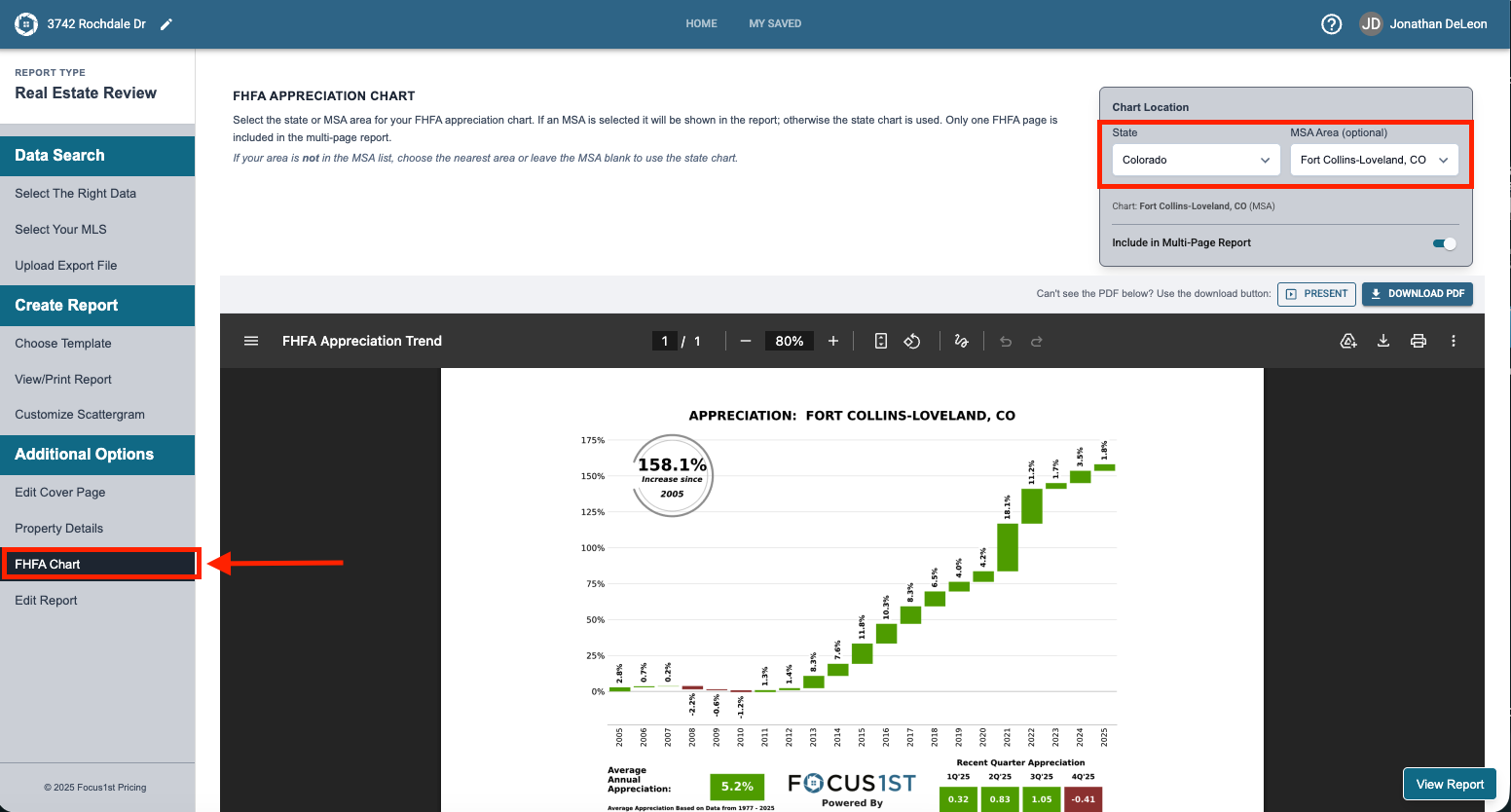
The FHFA Chart page is a great addition to show wide area appreciation. The software should automatically pull the correct graph based on your report details, but if you need to change it, you can do so using the drop down menus on the top right.
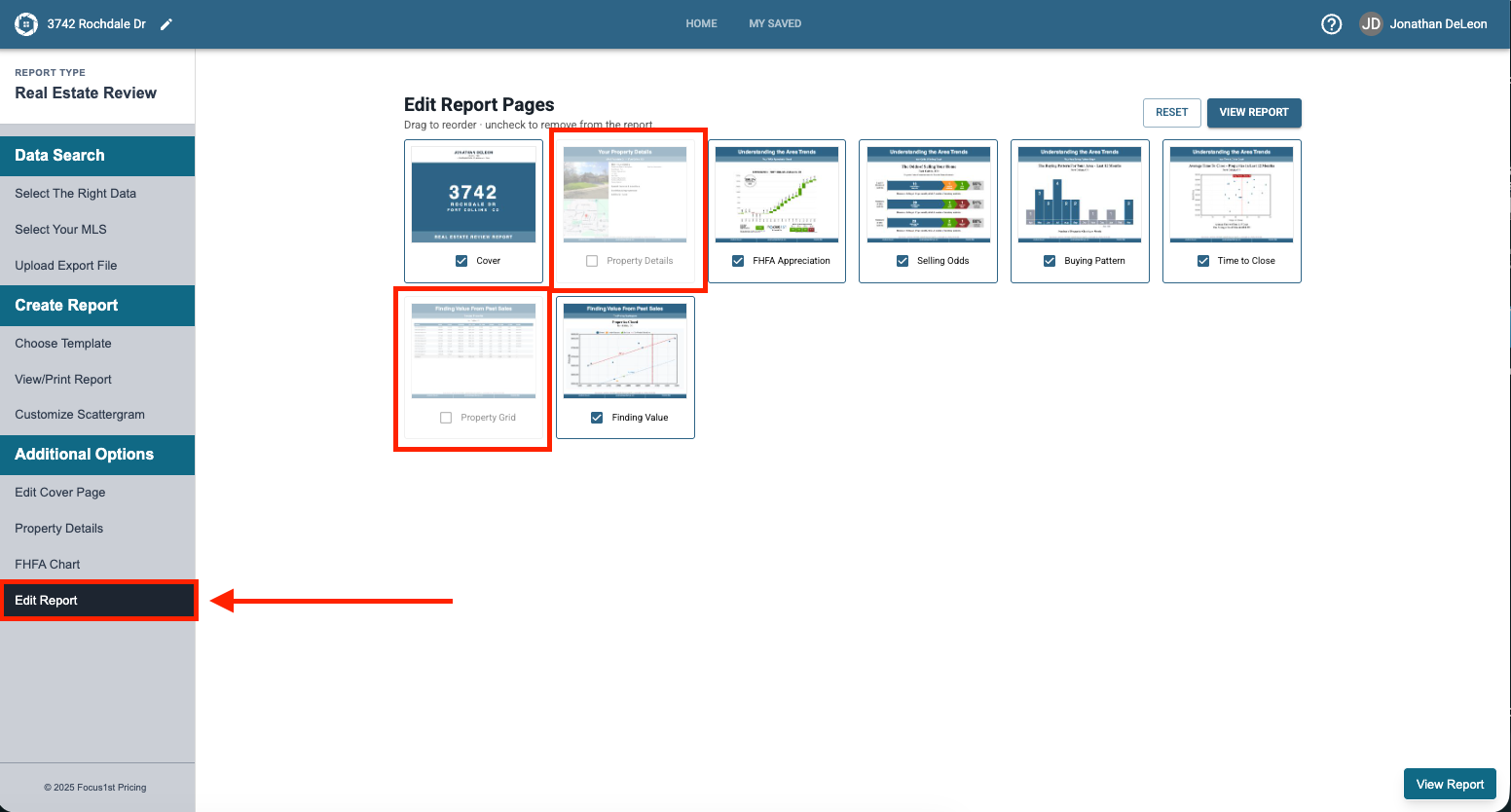
The Edit Report Step lets you select which pages you want included or not included in your report. Simply click on the pages to toggle them on and off. When you have the right pages selected click View Report.
Edit Cover Page
Property Details Page
FHFA Chart Page
Edit Report (Pages)