
Help Center > System Settings > How Can I Enable Multiple MLS File Uploads (Same MLS)?
How Can I Enable Multiple MLS File Uploads (Same MLS) and Upload Multiple Files?
Some MLS areas split data differently than others. Because of this you may need to upload several files from your same MLS in order to get the complete picture of the real estate market. We allow this setting to turned on through your settings area. Once you enable this option, you will be able to upload multiple files.
To enable this setting:
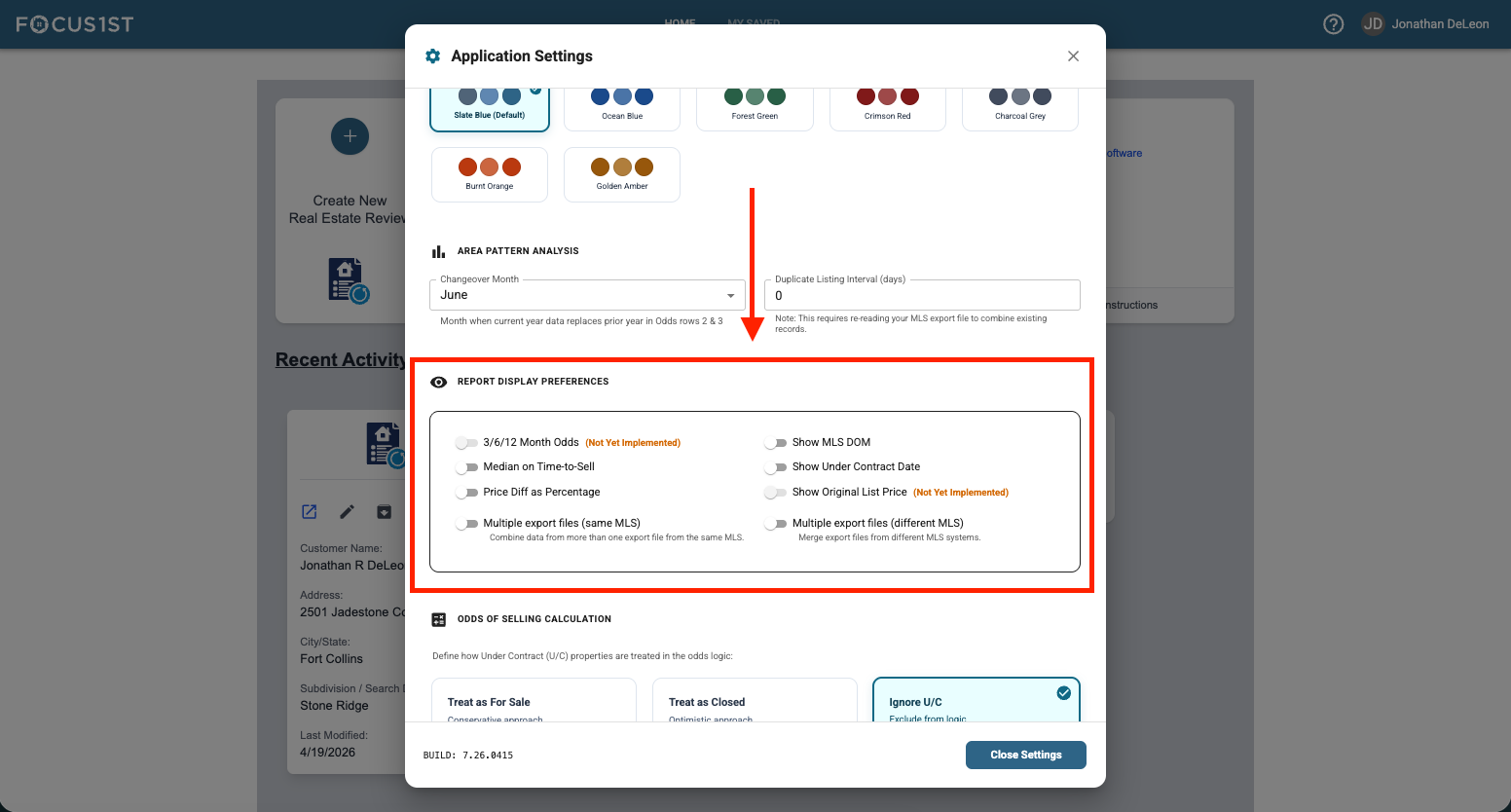
Scroll down in the window that opens until you see the option: Report Display Preferences.
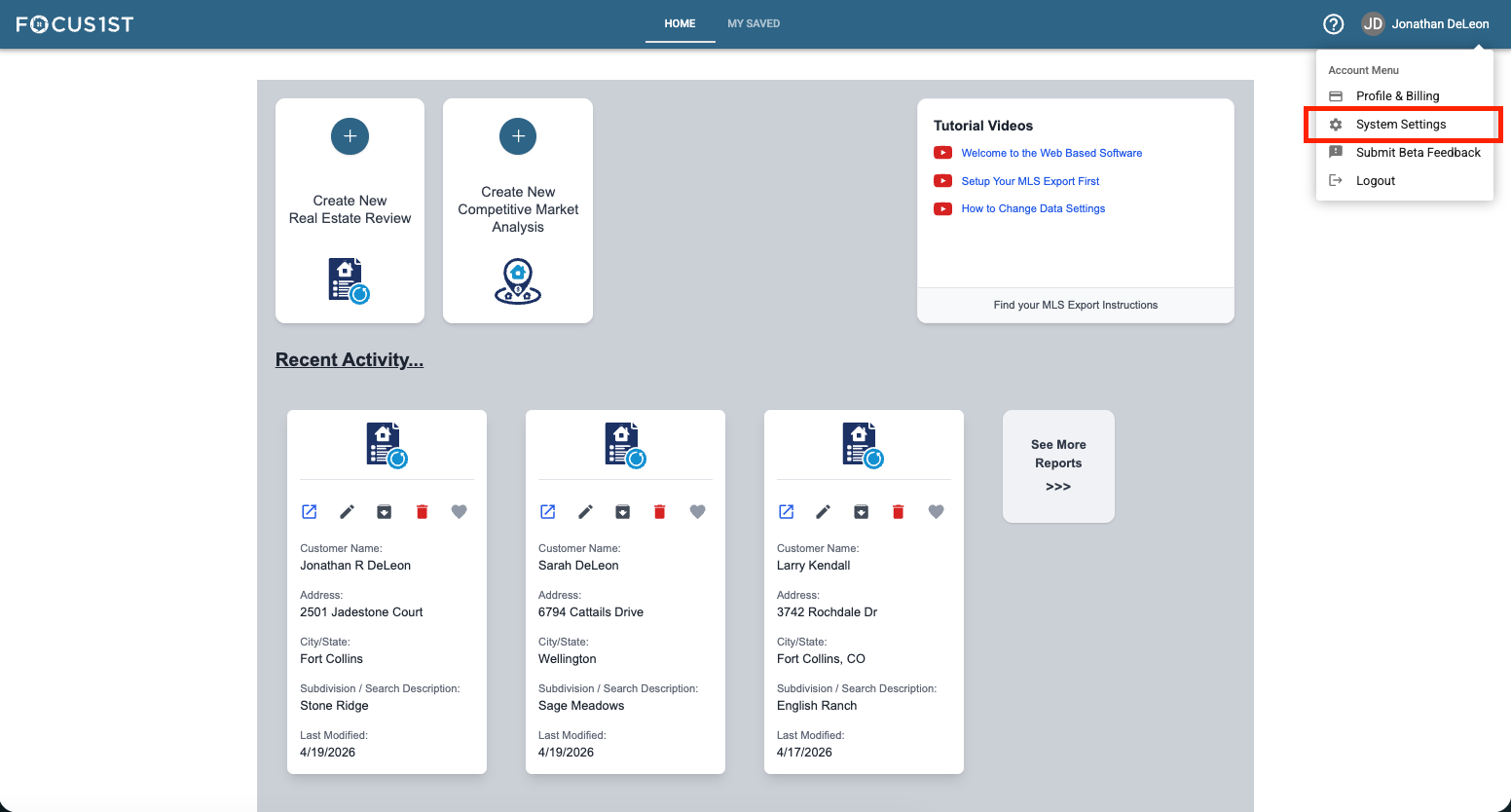
Open your settings menu using the dropdown, clicking your name then the option “System Settings.”
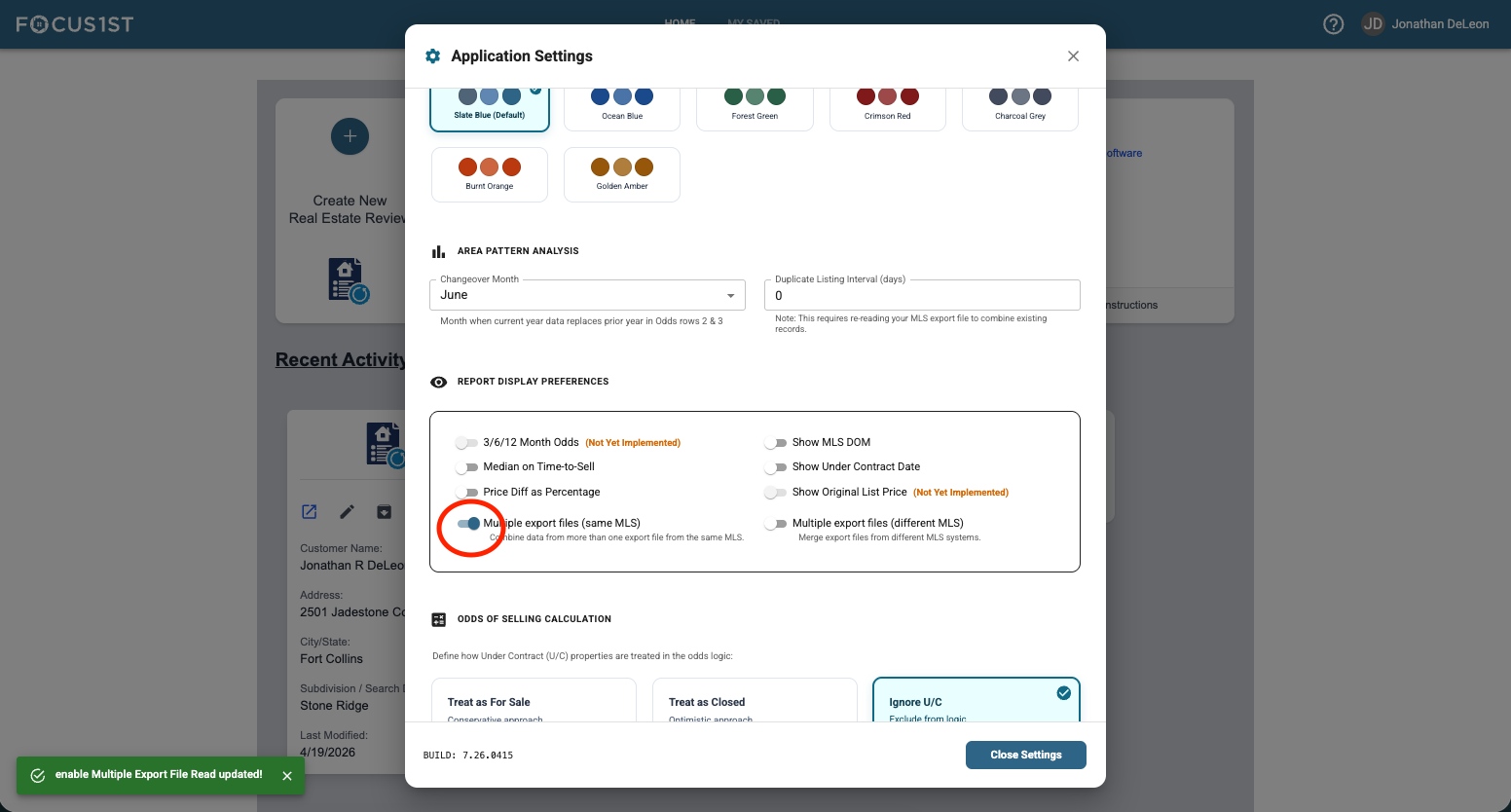
Toggle the switch labelled: Multiple Export Files (Same MLS).
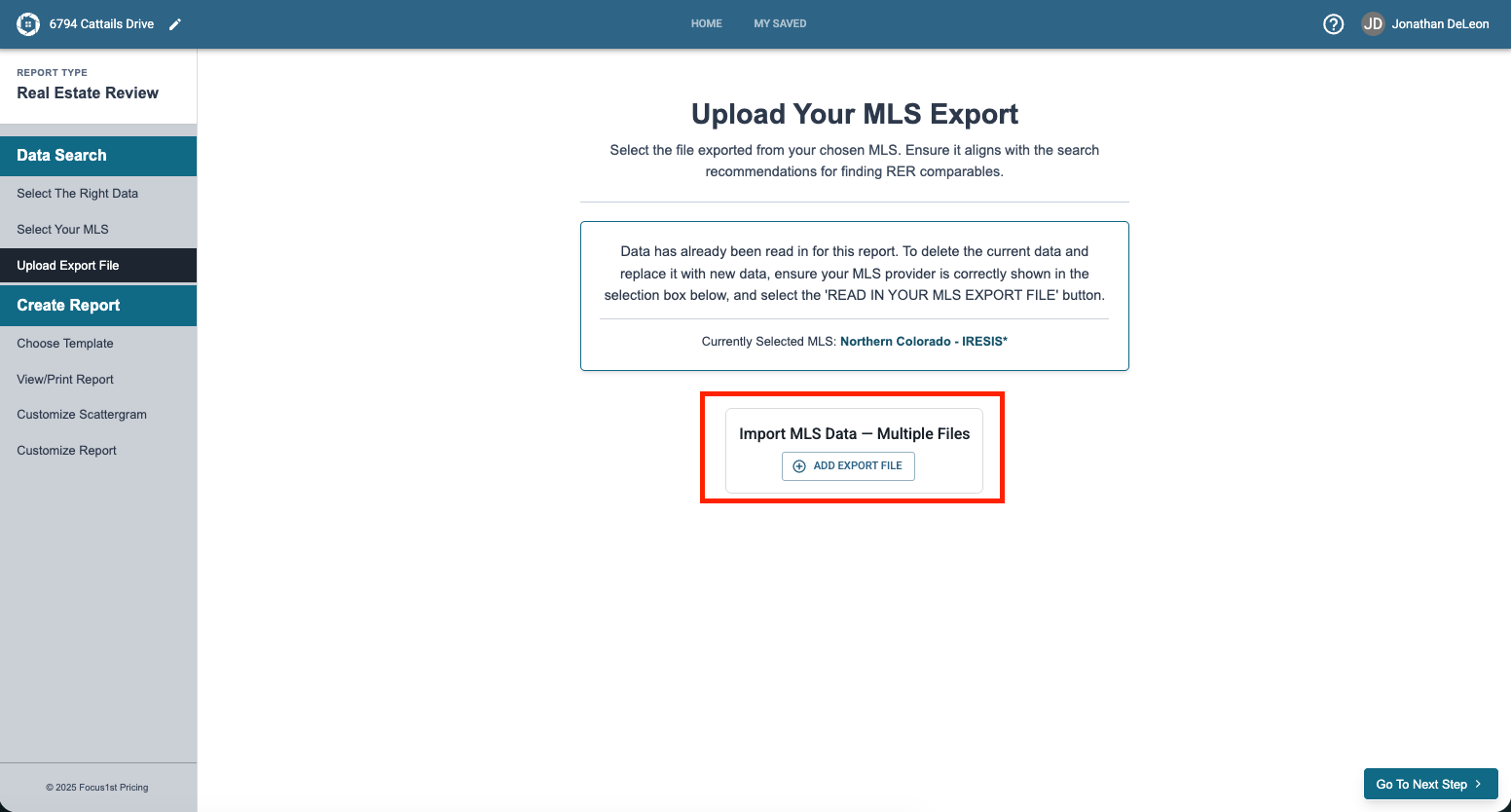
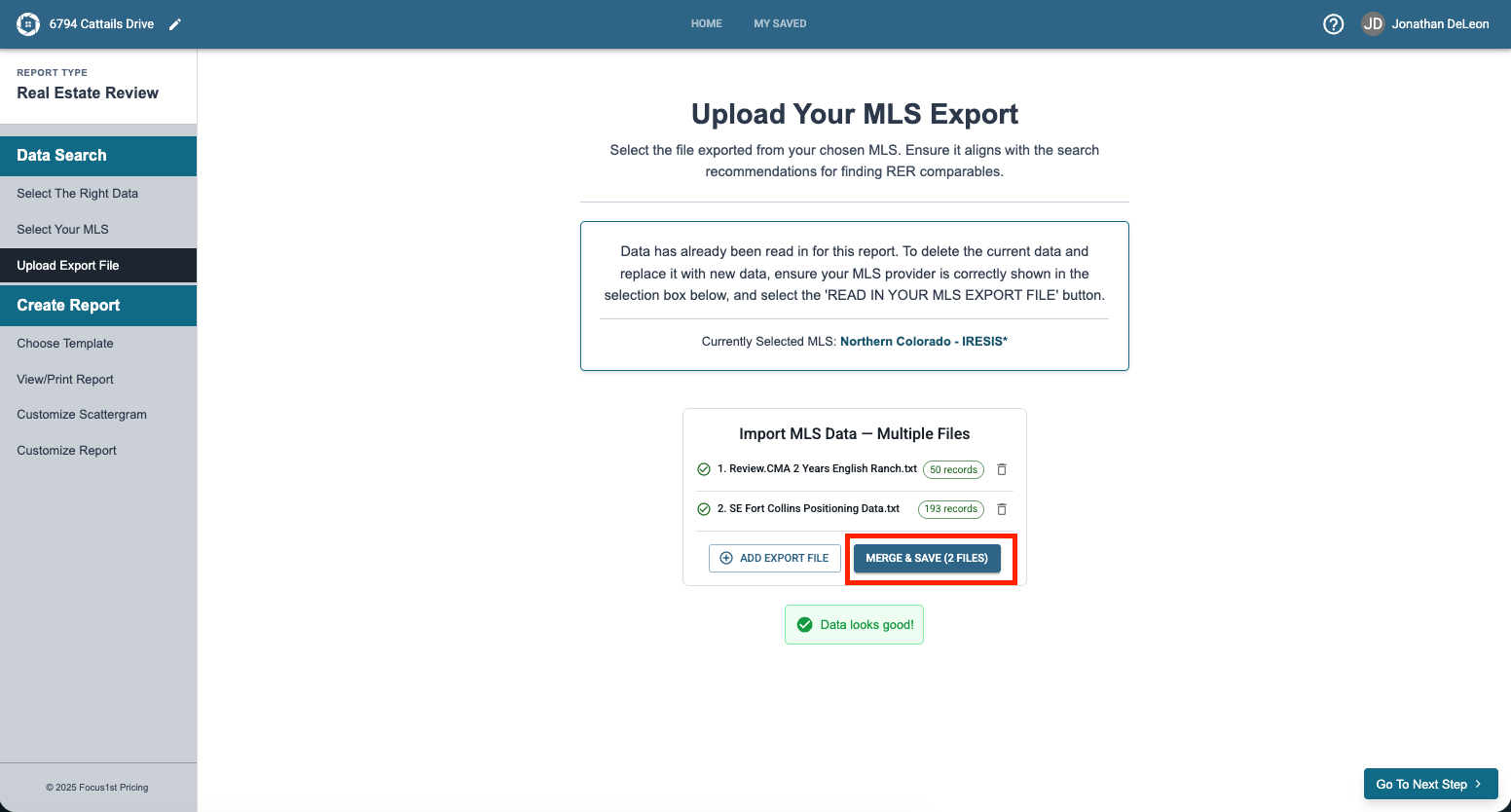
This setting is saved automatically. Now when you go to ‘Upload Export File’ in your report creating steps you’ll see a subtle change in the controls. You’ll see the upload button now has a (+) and allows for multiple uploads.
After uploading your files click "Merge & Save" and you’ll have created a new combined MLS Data sheet.
Open System Settings
Scroll to Report Preferences
Toggle Switch (Same MLS)
Upload Multiple Files
Merge & Save