
Help Center > System Settings > How Can I Enable Multiple MLS File Uploads (Different MLS)?
How Can I Enable Multiple MLS File Uploads (Different MLS)?
There are some areas that have an overlap in MLS usage, in this case you made need to combine different files from different MLS to get the full picture. The software does this very easy using the custom settings.
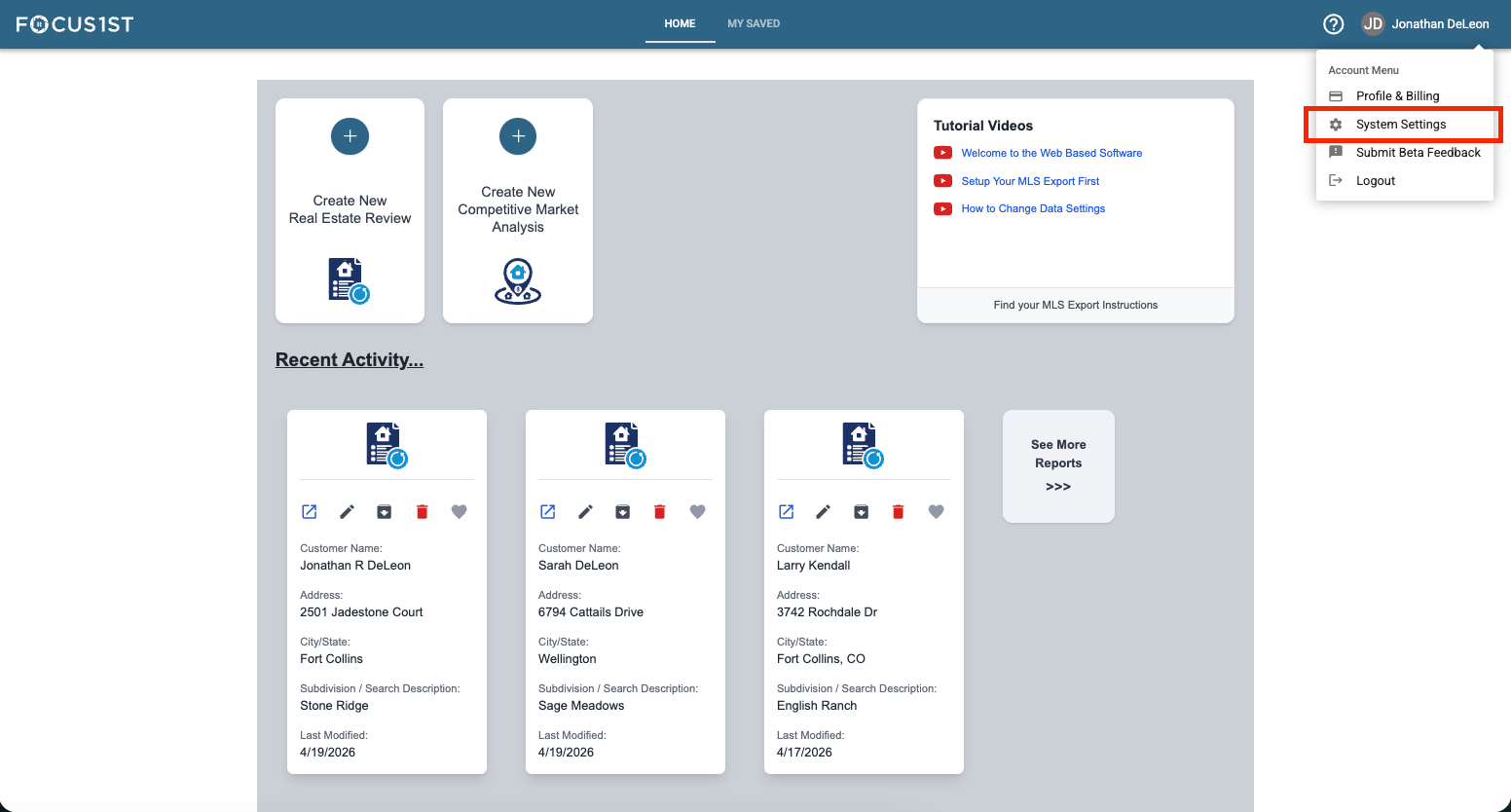
Open your settings menu using the dropdown, clicking your name then the option “System Settings.”
Scroll down in the window that opens until you see the option: Report Display Preferences.
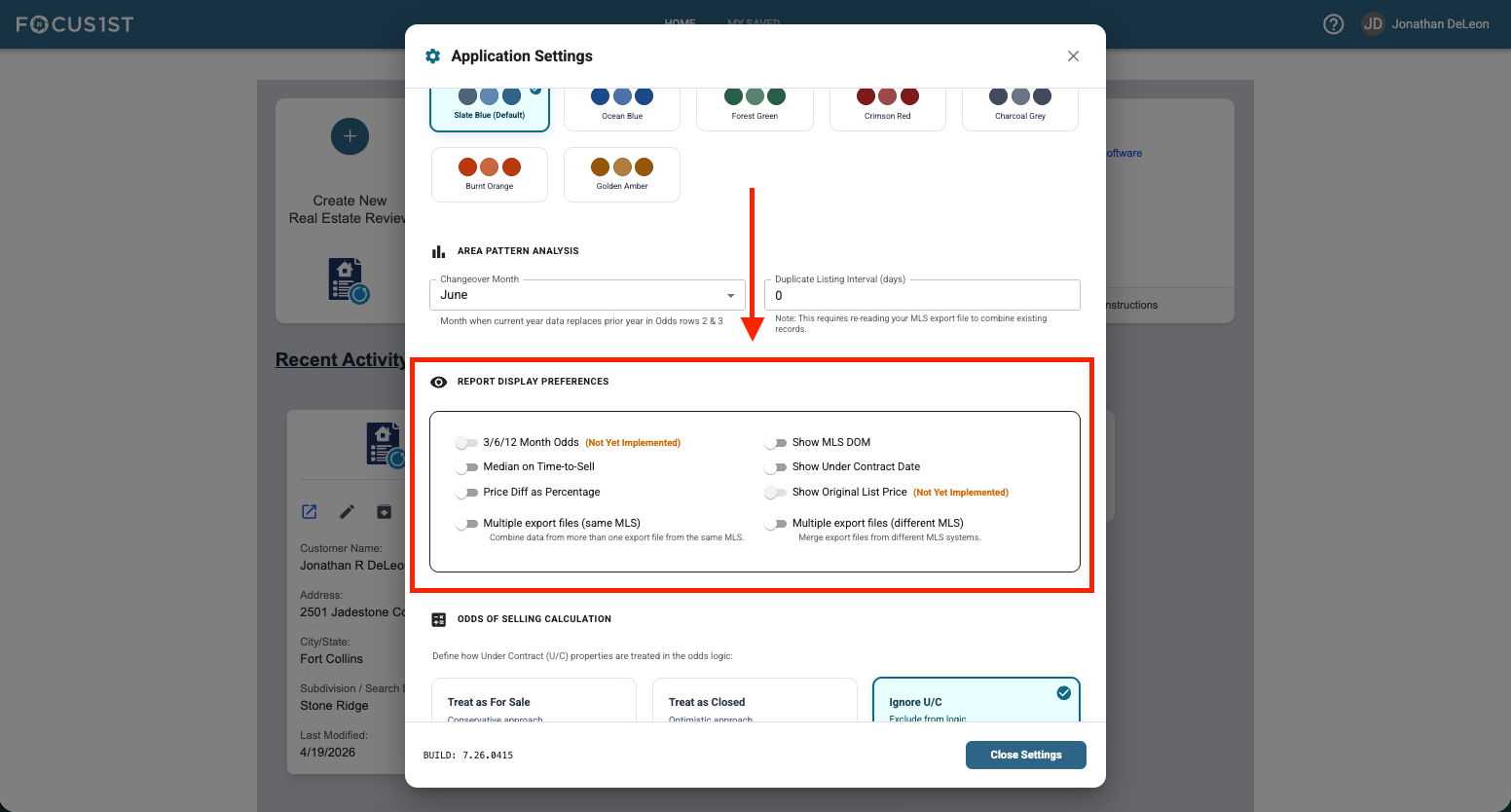
Toggle the switch labelled: Multiple Export Files (Different MLS).
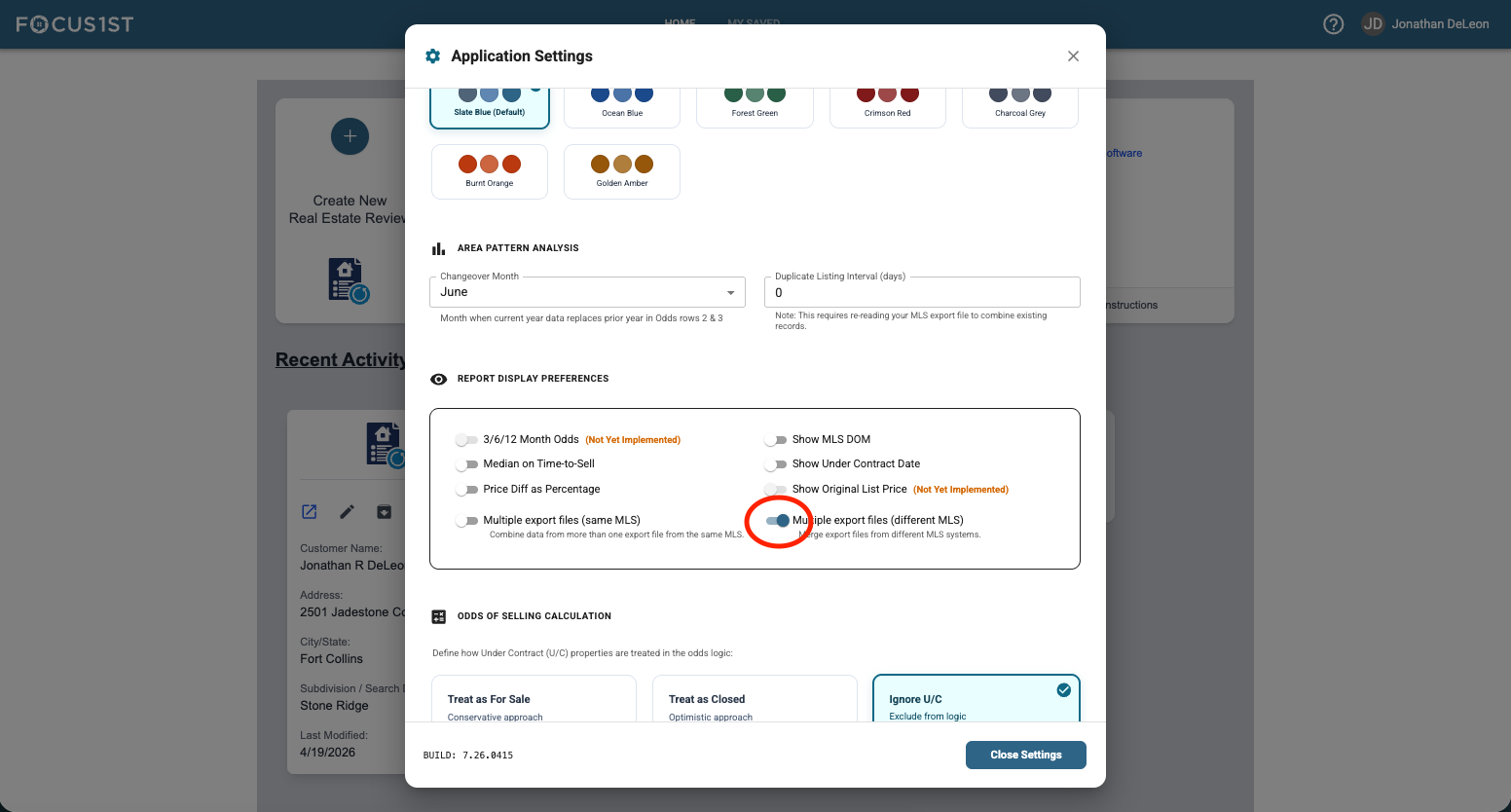
This setting is saved automatically. Now when you go to ‘Upload Export File’ in your report creating steps you’ll see a subtle change in the controls. You’ll see the upload button now has a (+) and allows for multiple uploads and an additional drop down to select the MLS Area.
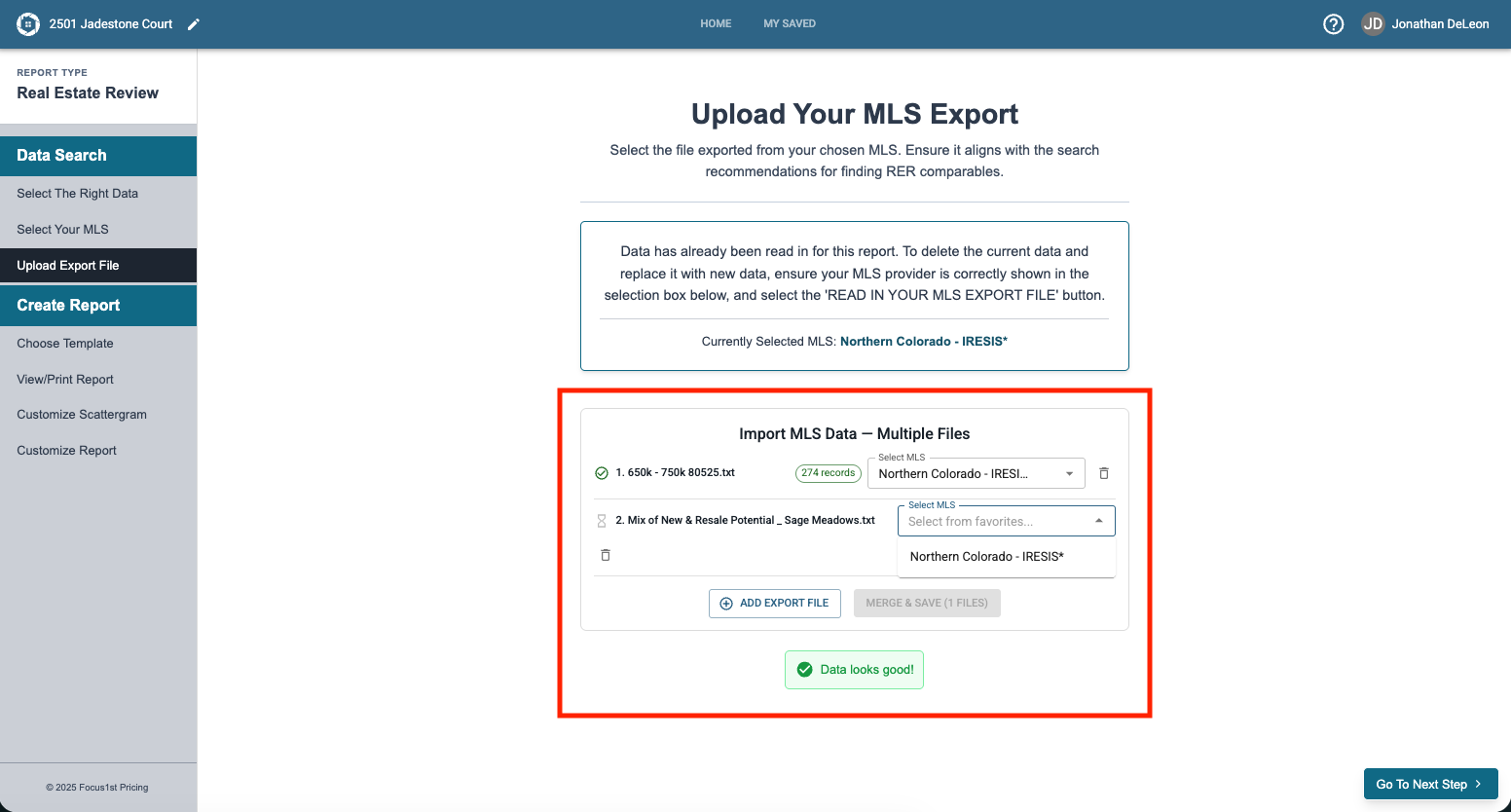
When you’ve uploaded all the files you wish, click merge and save.
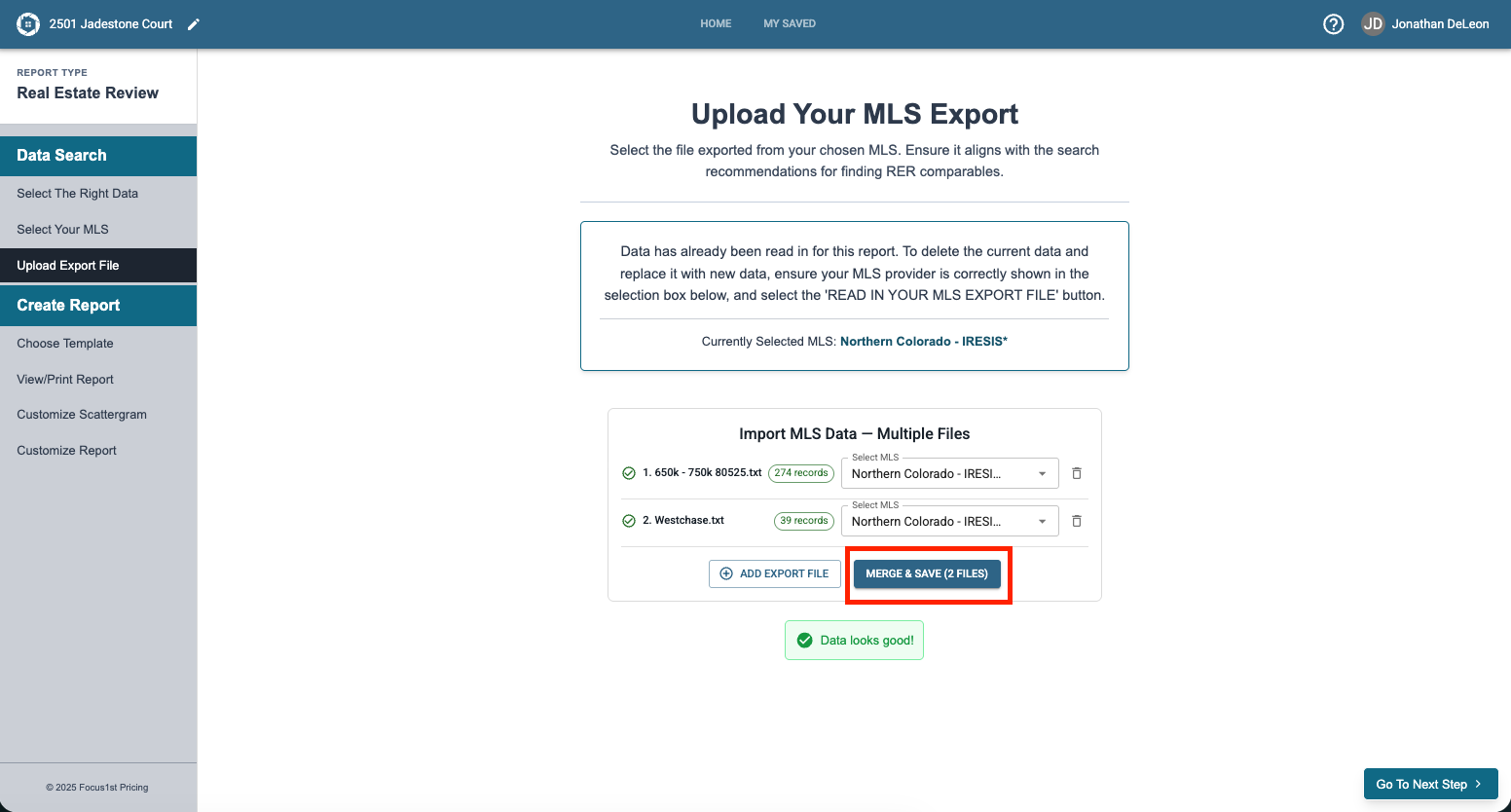
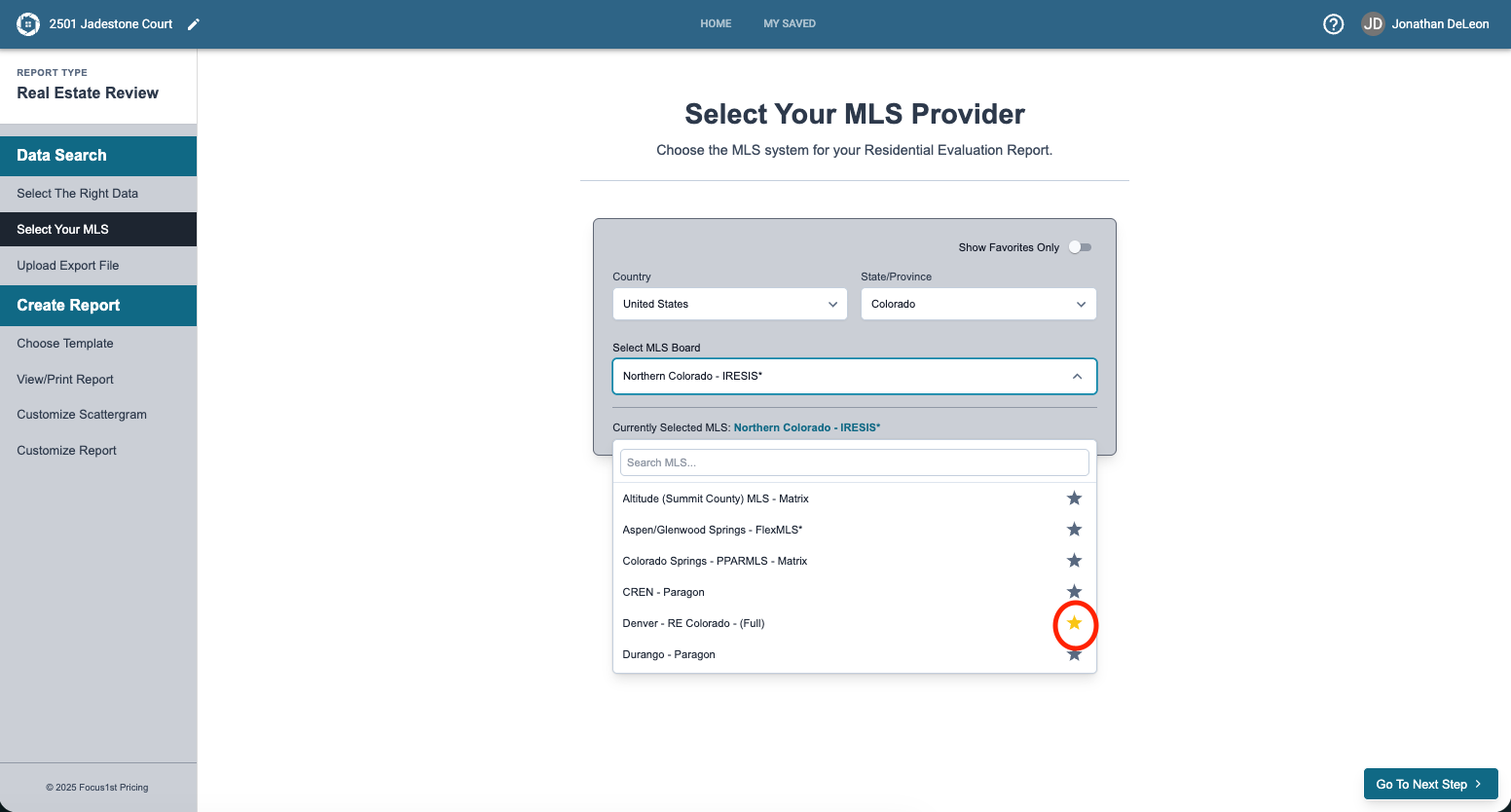
NOTE: You can only select MLS on this page that are Favorites. To add MLS you’ll need to click the star next to the name on the Select Your MLS Step.
Power to the Agent
Search & Export
Upload
Create Reports
Saved Unique to You