
Help Center > Competitive Market Analysis > How to Select Your FHFA Area(s)
How to Select Your FHFA Area(s)
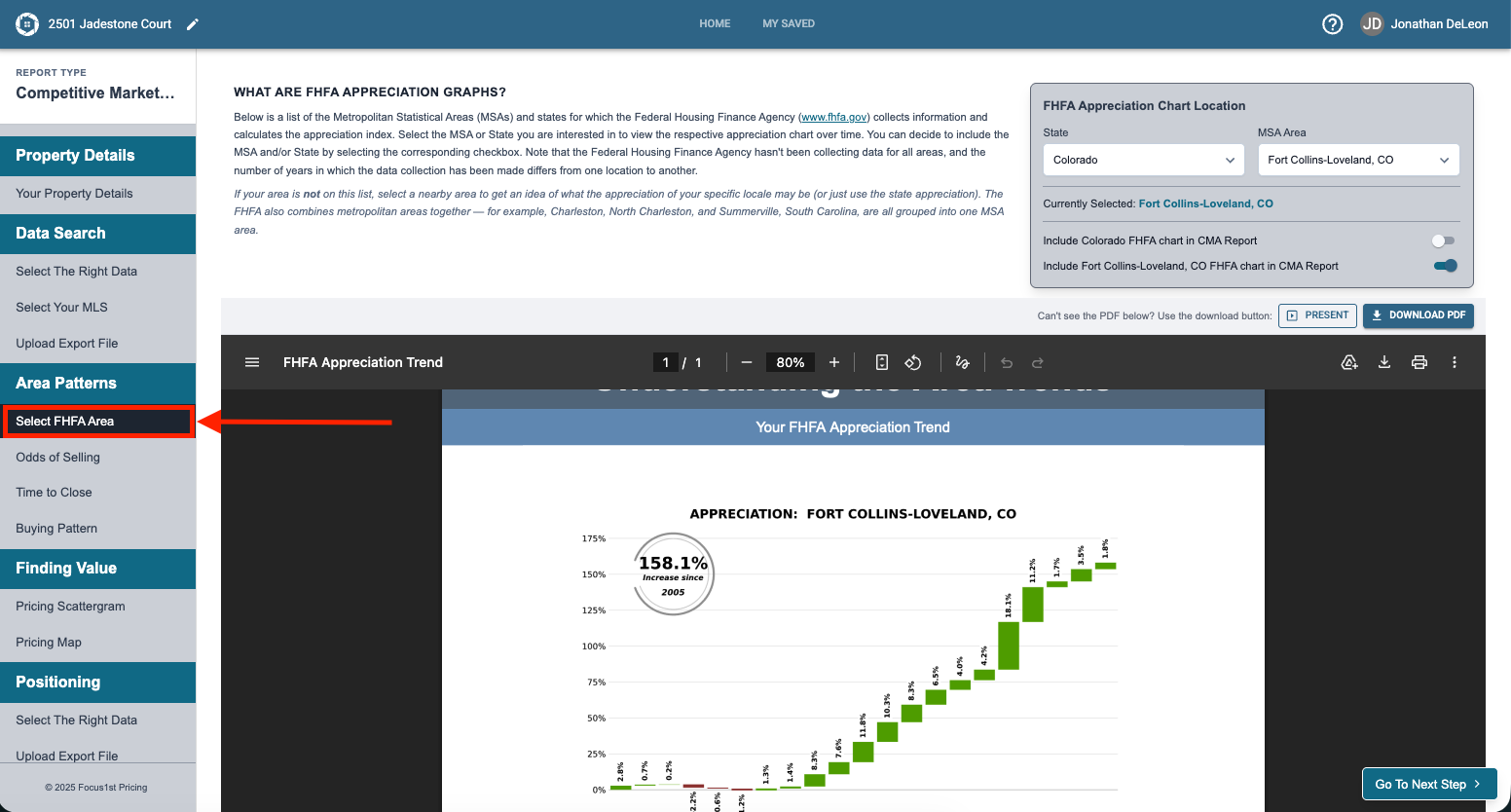
The FHFA graphs are a great way to show appreciation based on government data over a period of years on the wider area perspective. Focus 1st creates the graphs for you and allows the user to choose their State and area to add them to the CMA report. To do this, you’ll first need to open the Select FHFA Area step in the Competitive Market Analysis.
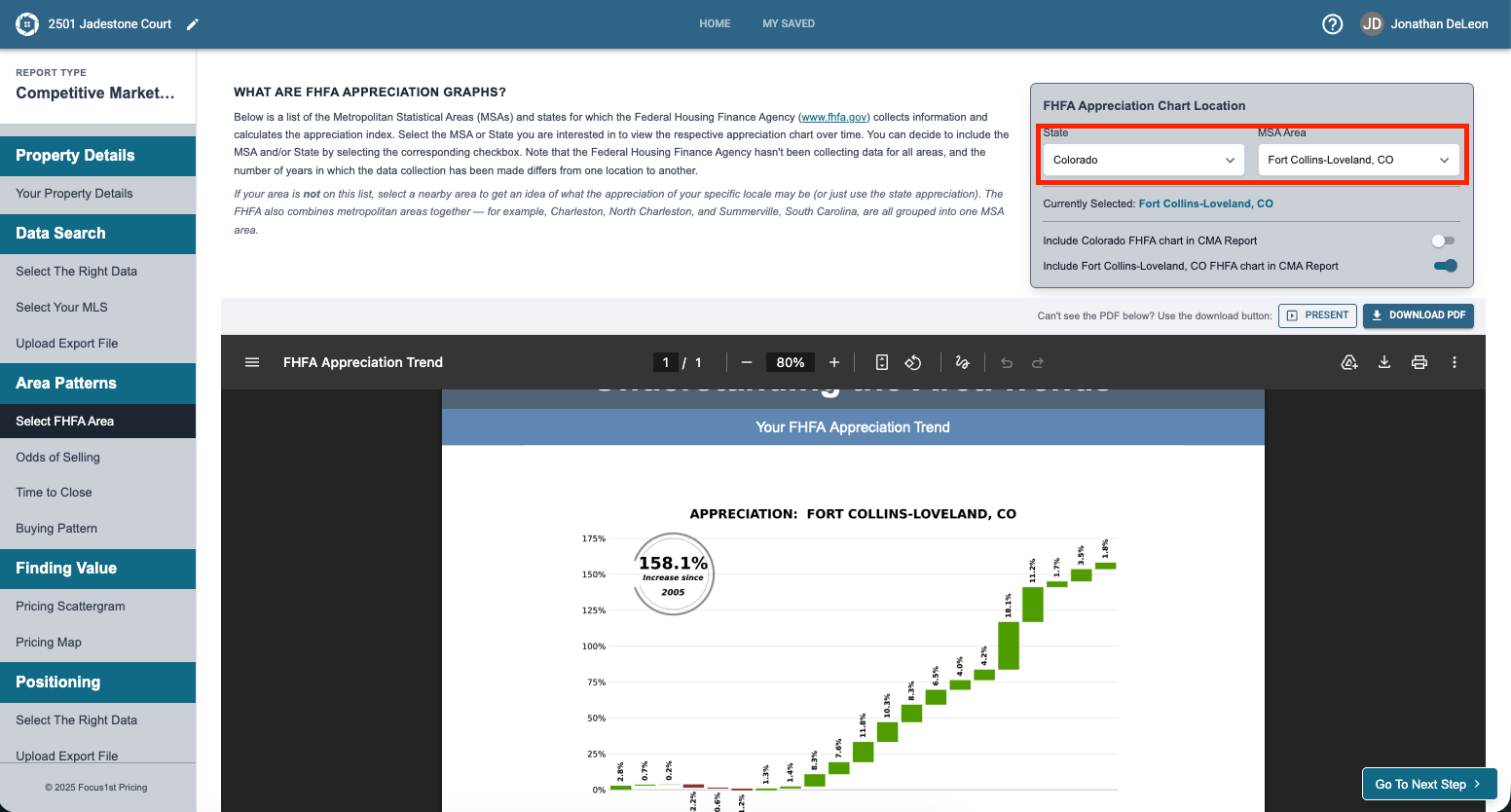
You’ll see a State and MSA area selected automatically if the address you put into the Report Details pulled up correctly in the system. You can change these however using the drop downs in the top right corner.
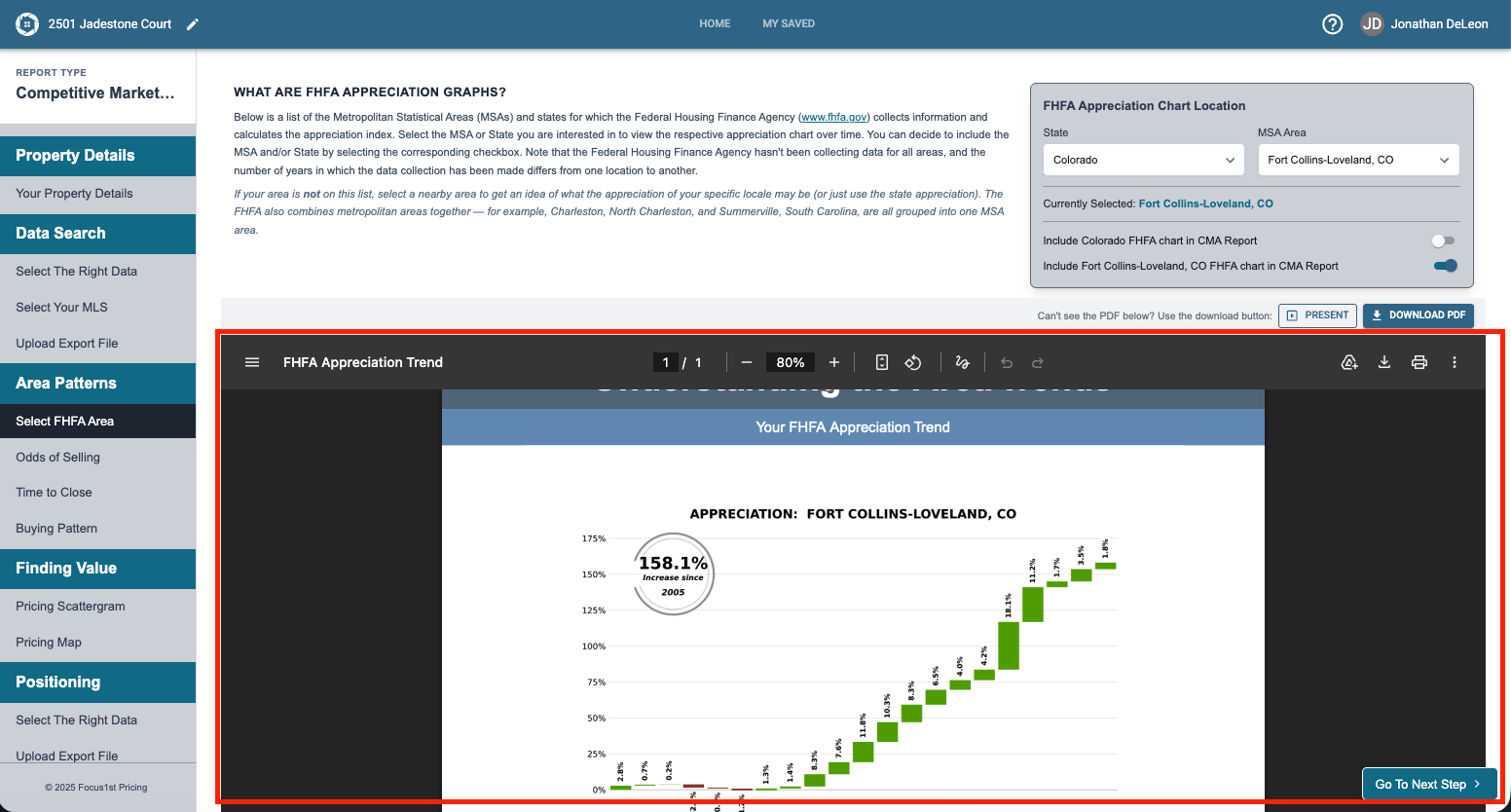
The FHFA graphs are previewed at the bottom of the page.
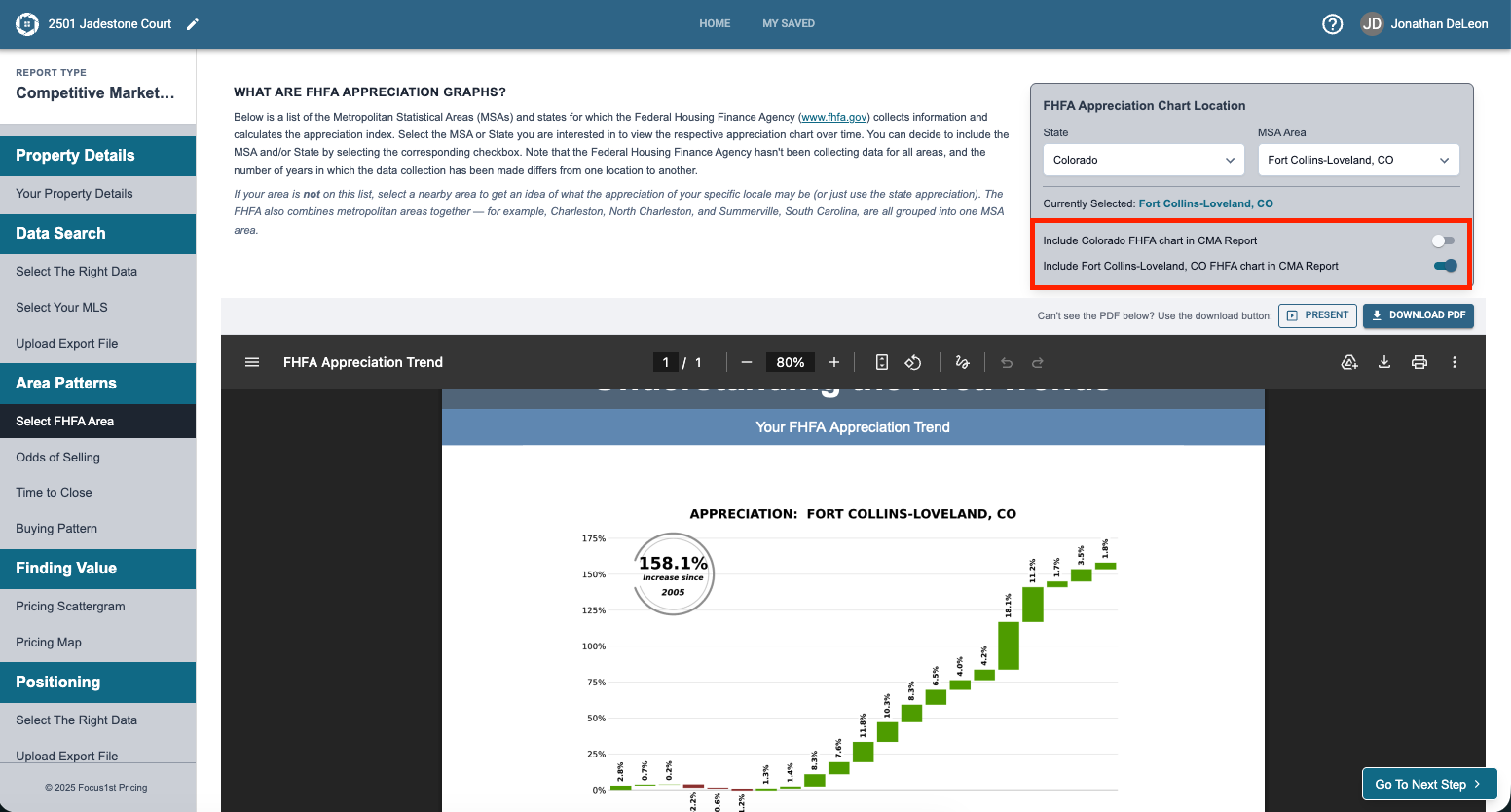
If you want to include one and not the other or both graphs be sure to use the toggle switches in the control box to add them to the report.
Select FHFA Area Step Open
Select State Dropdown
Select MSA Area Dropdown
Toggle Switches for Inclusion