
Help Center > Agent Branding > How Can I Change the Report Colors?
How Can I Change the Report Colors?
Changing the colors of the report to match your branding and style is important for many agents, not just to match their choice but often is required by their companies. The controls to do this are different for each report template.
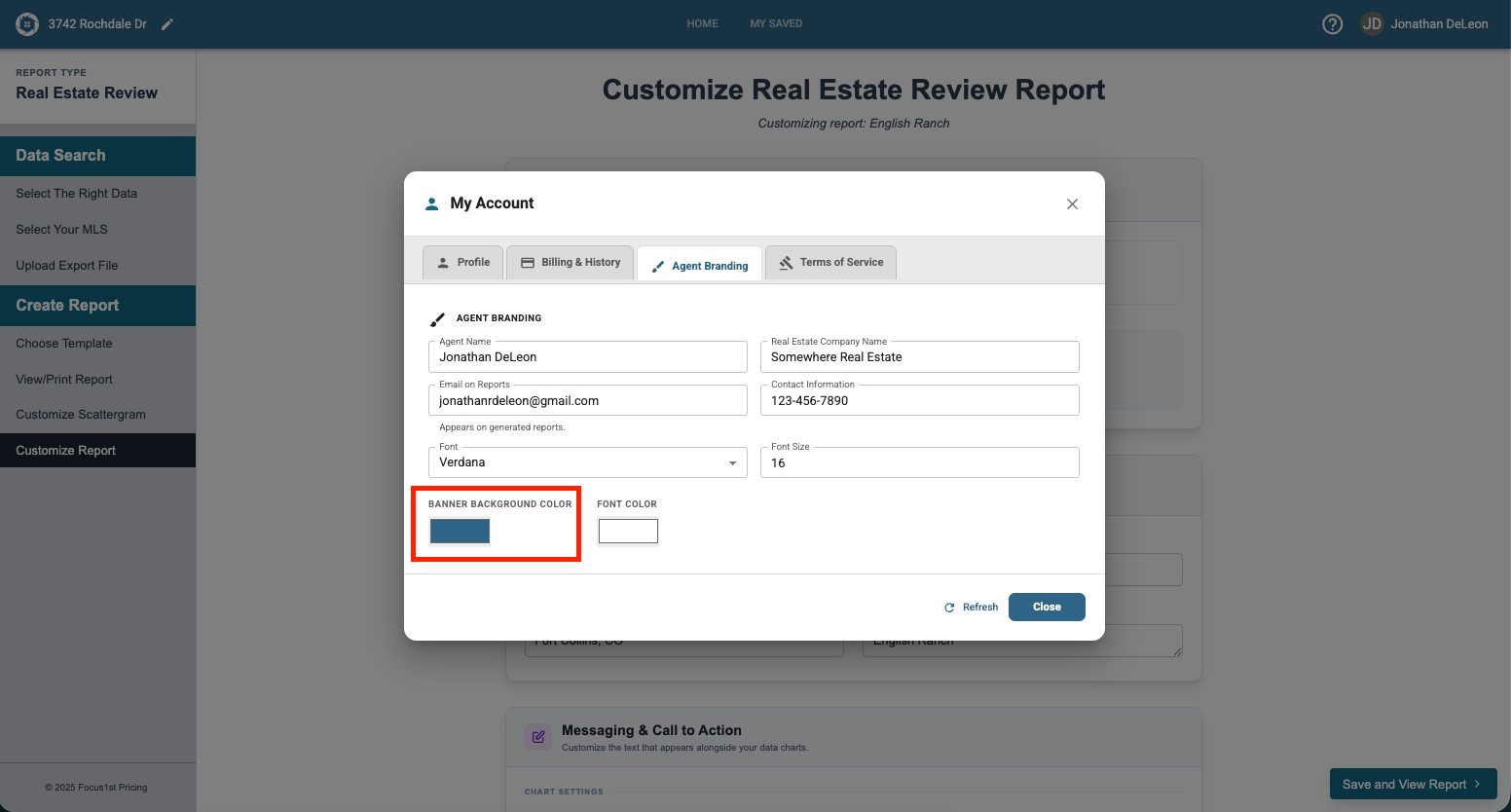
For the 1-Page Real Estate Review report and the 2-Page report you can change this color in the agent branding area.
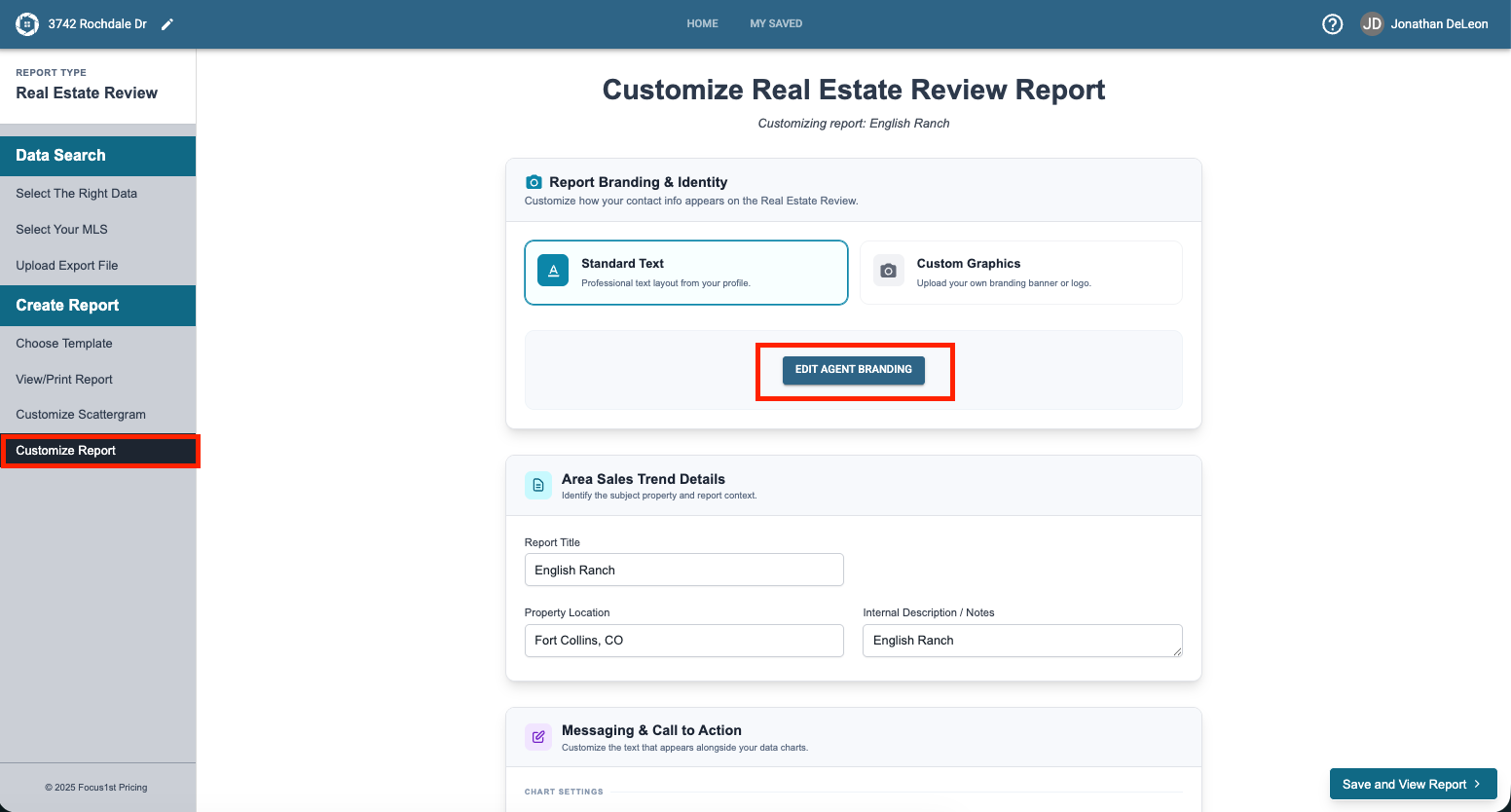
There are two ways to open this area. The first can be found of the Customize Report pages.
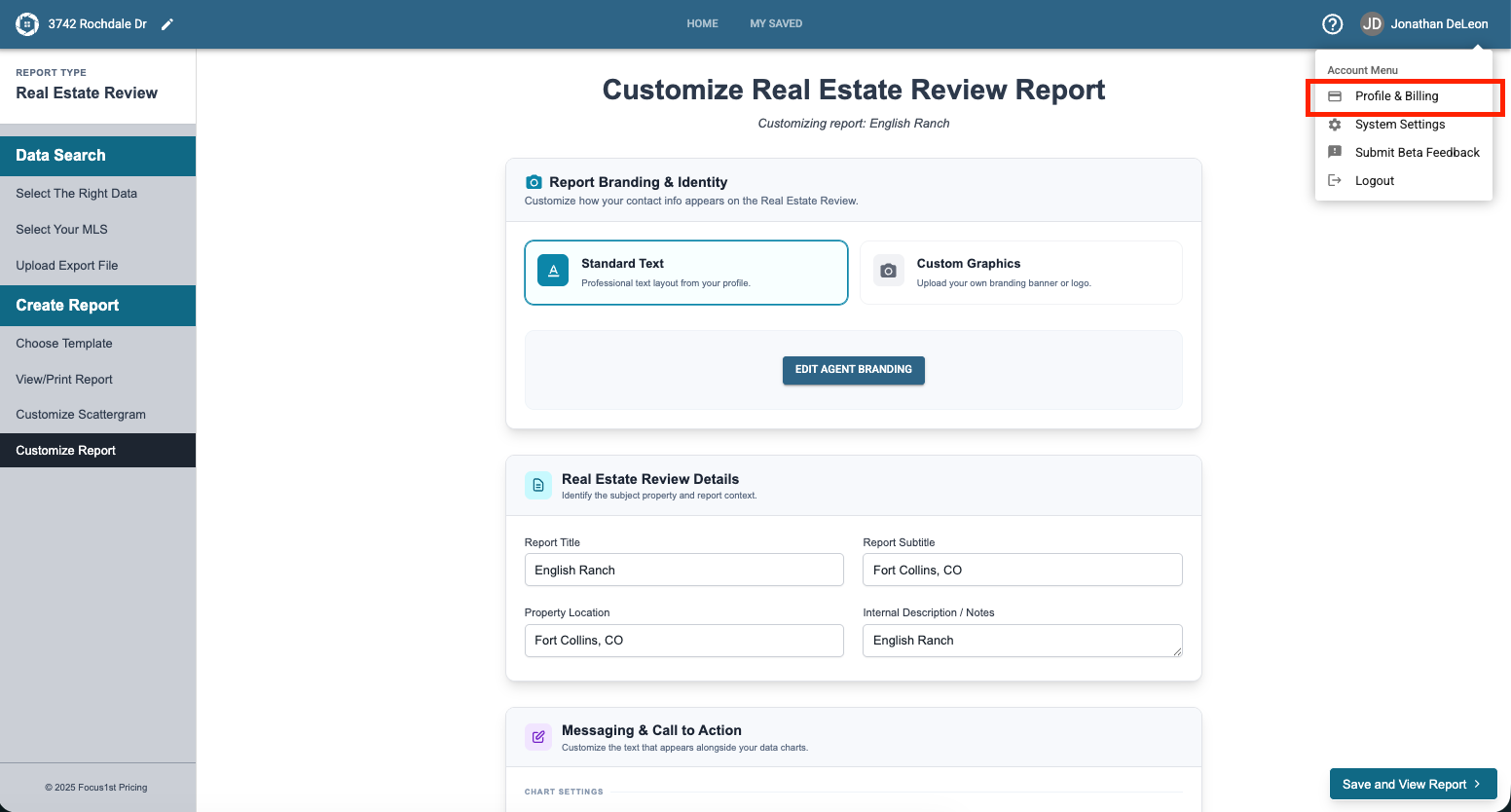
The other way to open this area is under the Profile & Billing option in the dropdown. Then clicking under the Agent Branding Tab.
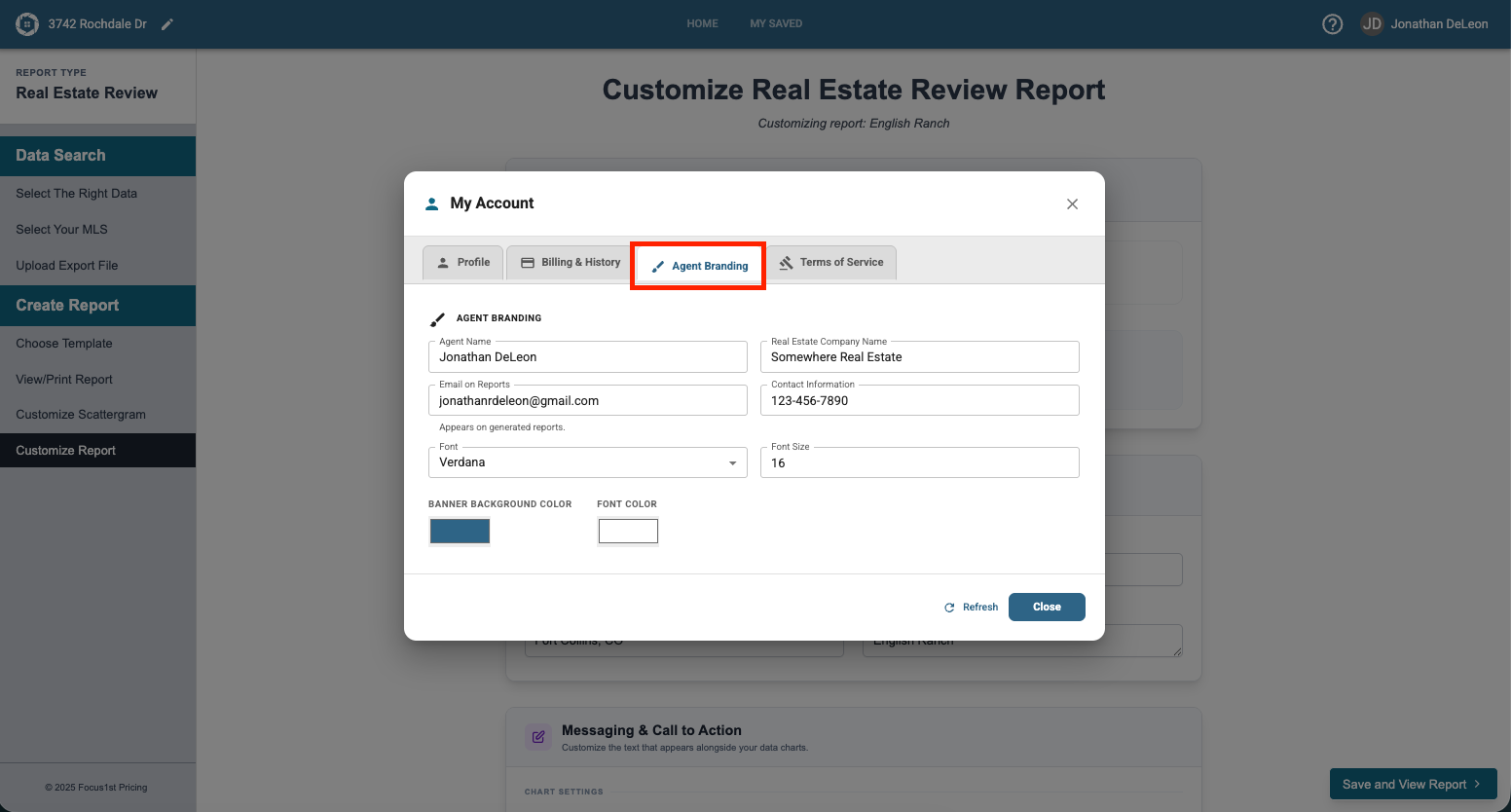
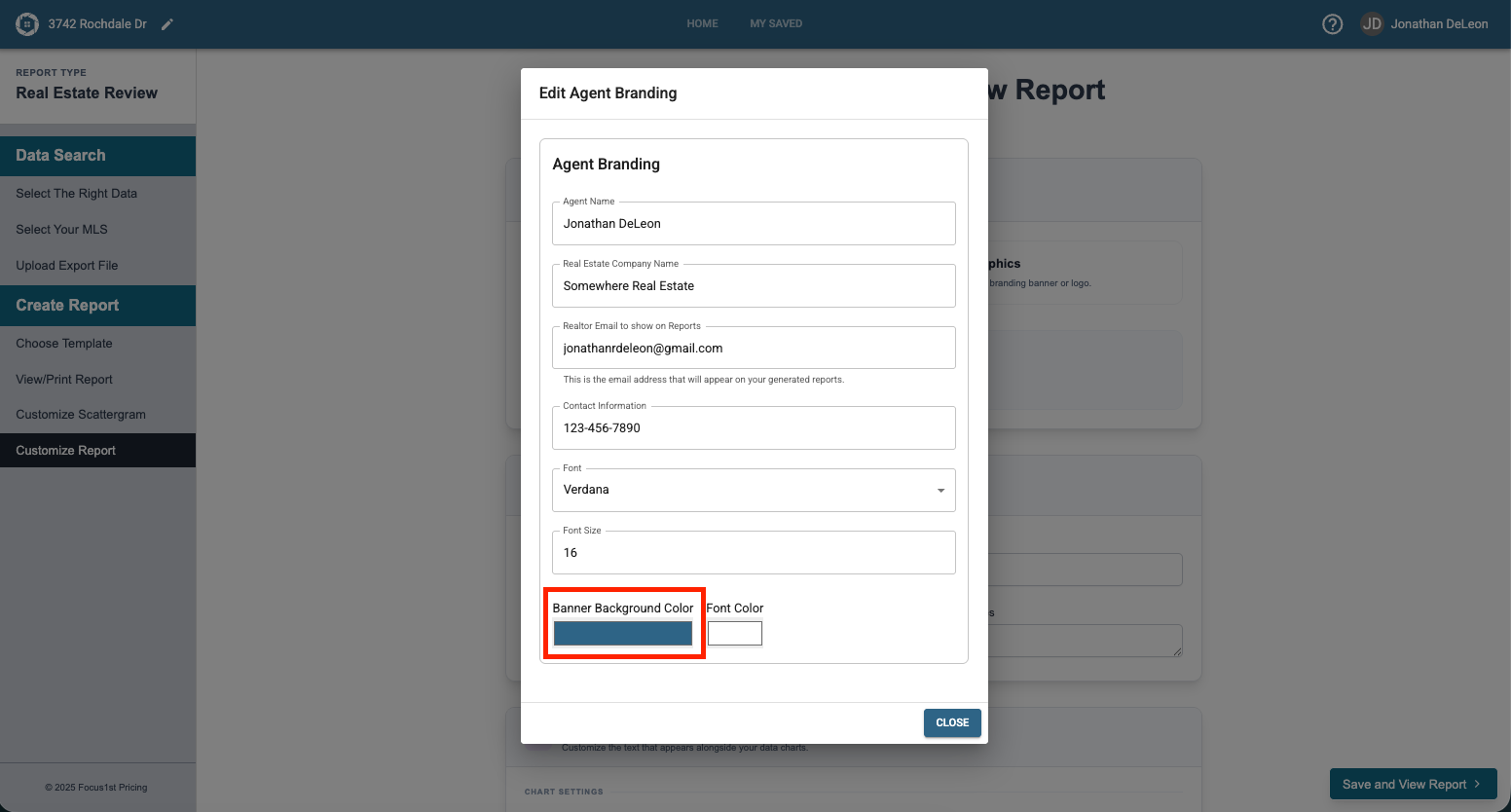
Clicking on the Banner Background Color Option, opens the color control box. Here you can change the color to anything you wish.
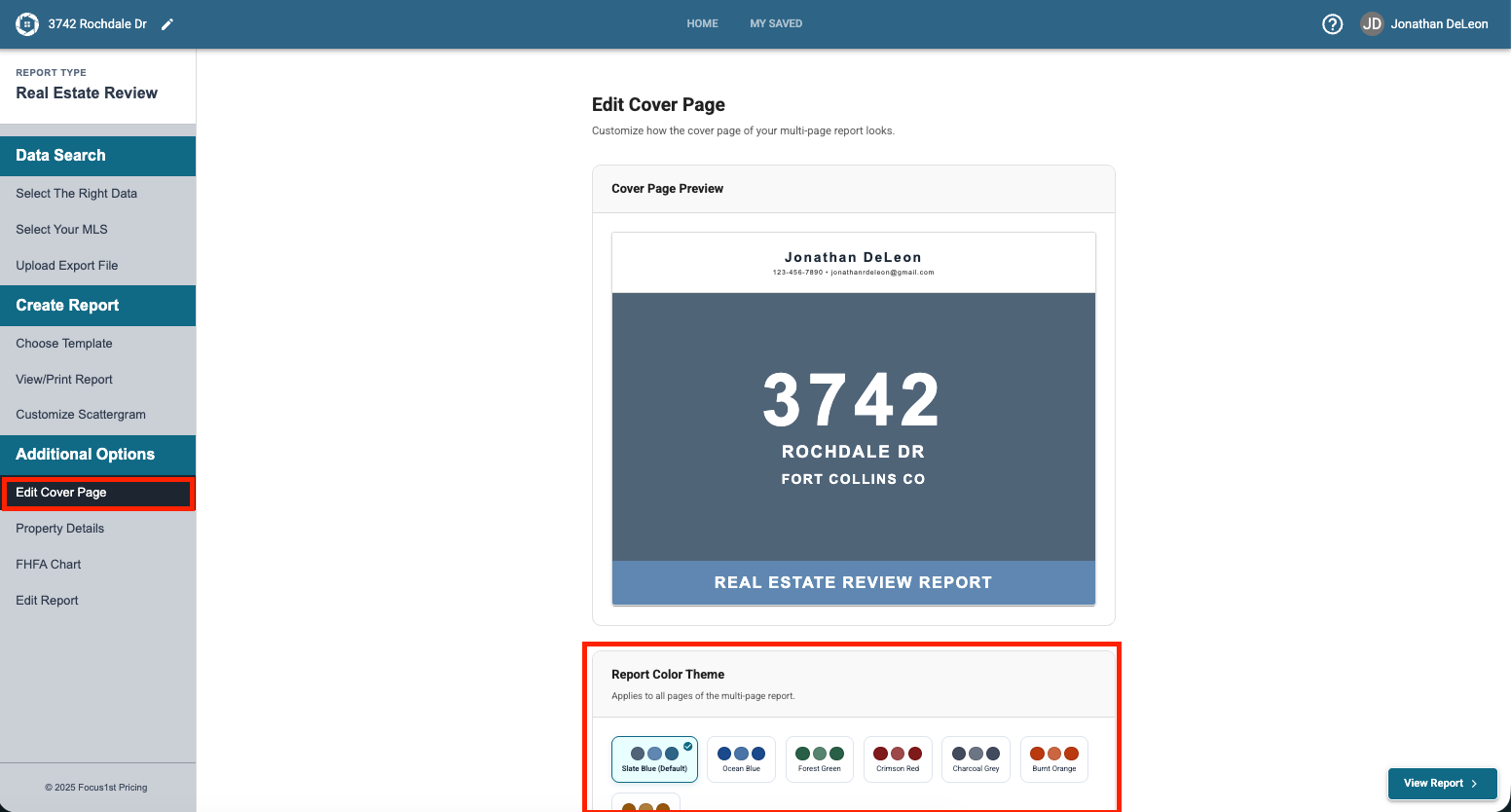
For the Multi-Page Real Estate Review report you can change the colors under the Edit Cover Page step, in the area called Report Color Theme.
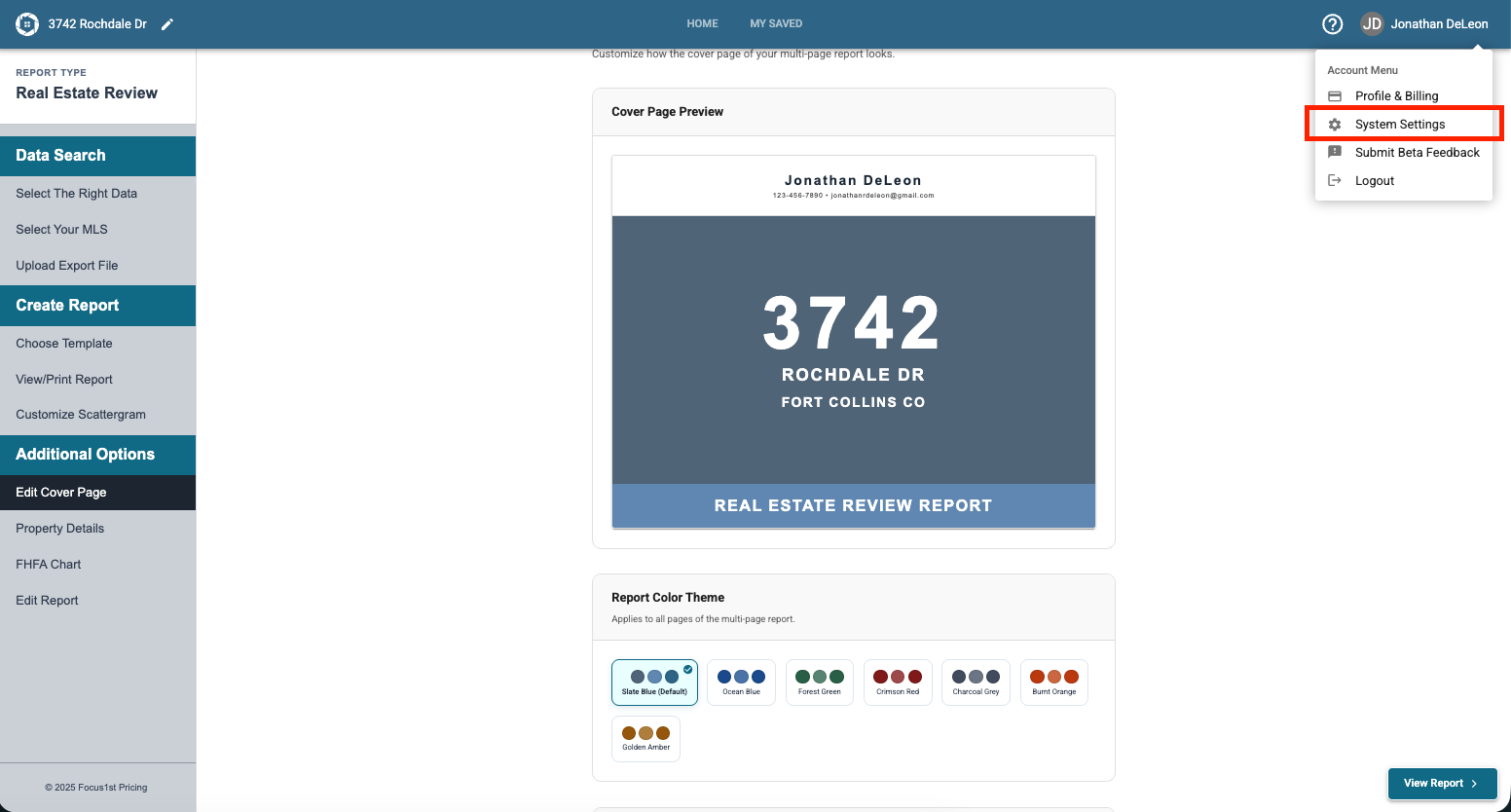
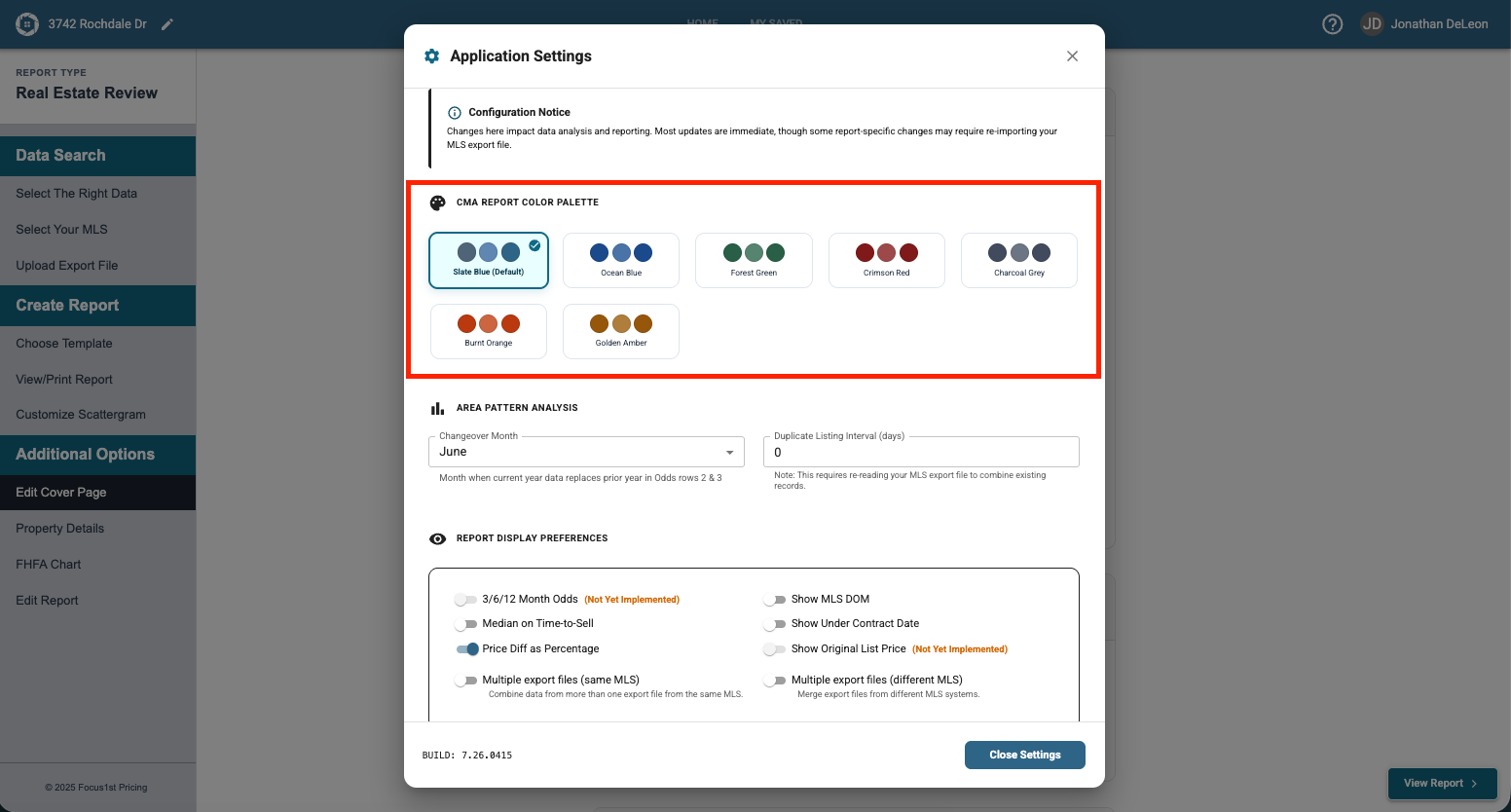
To change the color of the Competitive Market Analysis report you will find the options under the System Settings option in the settings dropdown, in the CMA Report Color Pallette.
Where to Find for 1 or 2 Page Real Estate Reviews Report
Where to Find for Multi-Page Real Estate Reviews Report
Where to Find for Competitive Market Analysis